Table of Contents
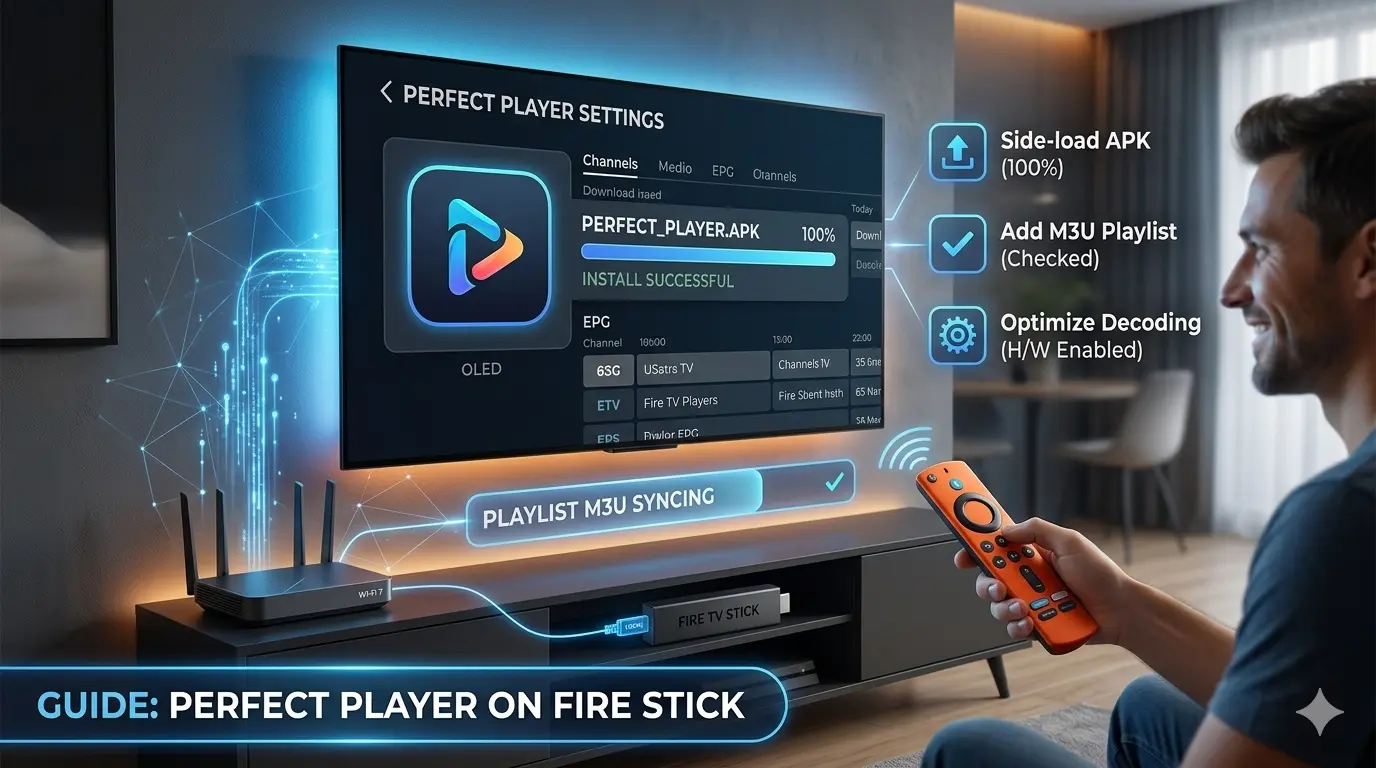
If you are looking for the easiest way to optimize your streaming, learning how to setup Perfect Player on Firestick is the best choice you can make in 2026. In this comprehensive guide, we will walk you through the complete installation and configuration process to ensure you get a professional and lag-free streaming experience on your device.
Why Choose Perfect Player for Your Firestick?
Perfect Player is known for its “set-it-and-forget-it” nature. It mimics the classic cable box experience, making it incredibly intuitive for long-time cord-cutters.
Core Benefits:
- Lightweight Performance: It runs smoothly on older Firestick models where heavier apps might lag.
- Highly Customizable: From the EPG (Electronic Program Guide) layout to remote control shortcuts, you can tailor everything.
- Multiple Playlist Support: Easily manage different services or M3U files within the same interface.
- No Bloatware: The app is clean, fast, and stays out of your way.
Step 1: Preparing Your Firestick for Sideloading
Before you can install Perfect Player, you must ensure your device allows the installation of third-party apps.
- Navigate to your Firestick Home Screen > Settings.
- Select My Fire TV (or Device & Software).
- Go to Developer Options.
- Ensure Apps from Unknown Sources is toggled to ON.
- Also, enable ADB Debugging to ensure seamless app installation.
Step 2: How to Setup Perfect Player on Firestick (Installation)
We will use the Downloader app to safely fetch the official APK.
- Open the Downloader app from your home screen.
- In the URL search bar, enter the official download link for the Perfect Player APK (or use a trusted 6-digit downloader code if available from the developer’s site).
- Click Go and wait for the download to finish.
- Click Install.
- Once the installation is complete, click Done and delete the installer file to free up storage space.
Step 3: Configuring Your IPTV Service
This is the most critical part of the setup. Once the app is launched:
- Open Perfect Player and select Settings.
- Go to General > Playlist.
- Enter the M3U URL provided by your IPTV service provider.
- In the EPG section, enter the XMLTV URL (if your provider supplies one) to ensure your channel guide populates correctly.
- Return to the home screen of the app. It may take a moment to load the channels; this is normal as the app fetches your content.
Pro-Tips for Perfect Streaming in 2026
To ensure you are getting the absolute best performance, follow these optimizations:
Optimize Video Decoding
If you notice stuttering or black screens:
- Go to Settings > Playback.
- Experiment with the Decoder settings. Switching between “Hardware” and “Software” decoding can often solve playback issues on specific Firestick generations.
EPG Management
If your guide is empty, go to Settings > EPG and check the “Auto-update” box. You can also manually trigger an update by selecting “Update EPG” from the main menu.
Troubleshooting Common Issues
Even the most robust players run into issues occasionally. Here is how to fix them:
- “Empty Playlist” Error: This is usually a sign of a malformed M3U URL. Re-check the link for any accidental spaces or characters.
- Buffering Issues: If you face buffering during peak hours, it is almost always an issue with your ISP. We strongly recommend using a high-quality VPN to bypass ISP throttling. For more detailed solutions, check our guide on Top 5 Network Settings to Improve IPTV Streaming Speed (2026).
- Remote Control Unresponsiveness: Ensure the app is updated to the latest 2026 version. Perfect Player is constantly improved for better Firestick remote integration.
Frequently Asked Questions (FAQ)
Q: Is Perfect Player free? A: Yes, it is free to use. There is a paid version available that removes ads and unlocks additional customization options.
Q: Does Perfect Player include channels? A: No. It is just a player. You must have your own M3U playlist or Xtream Codes subscription to watch any content.
Q: Is it safe for 4K streaming? A: Perfect Player is very capable, but 4K streaming requires a strong, stable internet connection and a Firestick model that supports 4K playback (like the Firestick 4K Max).
Final Thoughts
You have now successfully mastered how to setup Perfect Player on Firestick. By following this streamlined process, you have transformed your device into a professional-grade media center. Perfect Player’s simplicity is its greatest strength, offering a no-nonsense approach to IPTV that is perfect for 2026. Keep your playlists updated, maintain a clean cache, and enjoy your seamless streaming experience.
Leave a Reply