Table of Contents
In the landscape of modern digital entertainment, the ability to centralize your media consumption is a luxury that has become a necessity. As we navigate through 2026, cord-cutting continues to grow in popularity, and millions of users are turning to Amazon Firestick devices to host their streaming content. Among the myriad of available applications, IPTV Smarters Pro has emerged as a top-tier contender. If you are searching for how to install IPTV Smarters Pro on Firestick, you have come to the right place. This 2026 edition guide provides a comprehensive walkthrough to ensure you get the best streaming experience possible.
Why IPTV Smarters Pro is a Must-Have in 2026
Before diving into the installation process, it is important to understand why this specific player is so widely recommended by experts. IPTV Smarters Pro is not just a standard media player; it is an all-in-one entertainment solution designed to handle heavy playlists, massive EPG (Electronic Program Guide) data, and high-bitrate 4K streams with elegance.
The Key Advantages of Smarters Pro:
- Versatile Content Support: It supports live TV, VOD (Movies), and TV Series, allowing you to manage your entire library in one place.
- Customizable UI: Unlike other players that force a rigid layout, Smarters Pro allows you to organize your channels in ways that make sense for your viewing habits.
- Parental Controls: With robust security features, you can lock specific categories or channels, making it a family-friendly choice.
- Multi-Screen Capability: For sports enthusiasts, the ability to watch up to four different streams on one screen is a game-changer.
- VPN Compatibility: The app works seamlessly with all major VPN providers, ensuring your privacy while you stream.
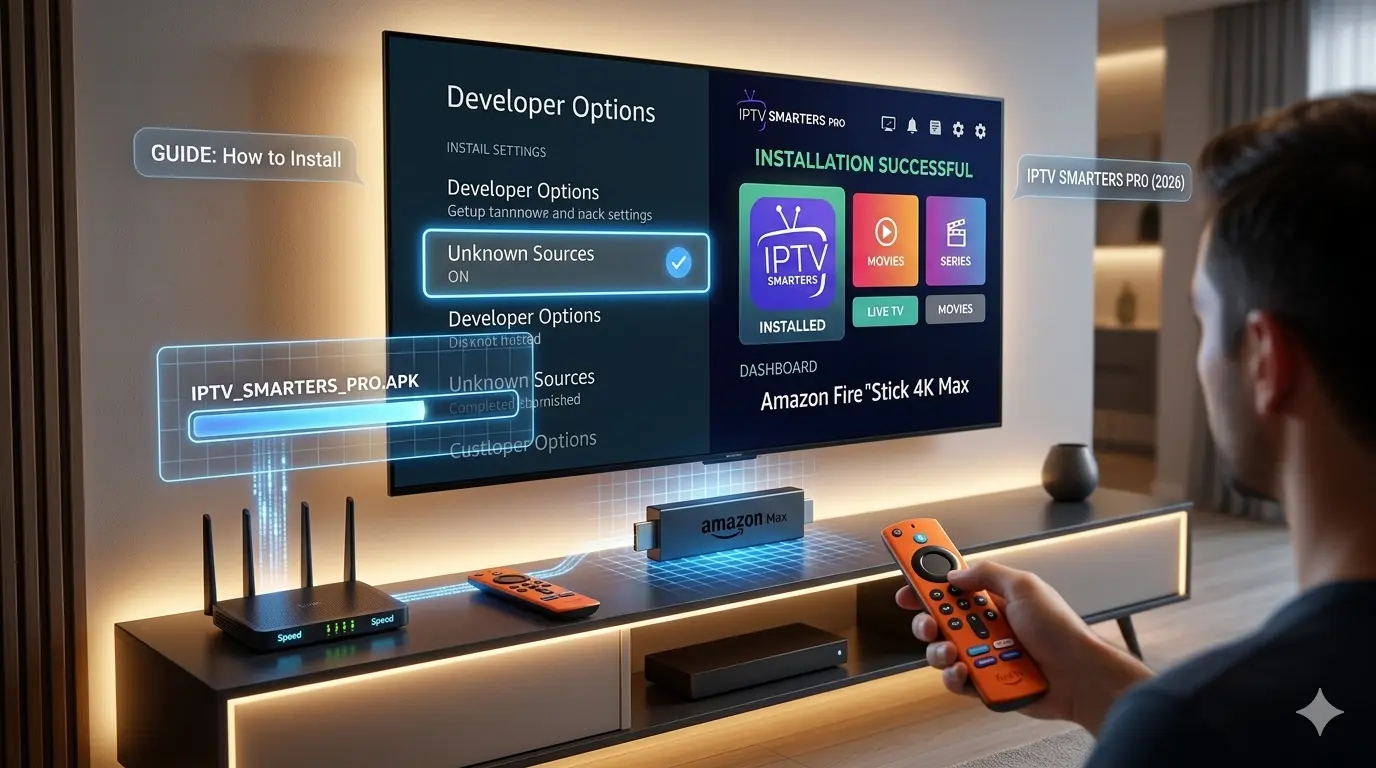
Step 1: Pre-Installation Setup (Developer Options)
Because Amazon prefers you to use apps from their official App Store, they hide certain settings by default. To sideload IPTV Smarters Pro, you must unlock these “Developer Options.”
- Navigate to your Firestick Home Screen and go to Settings.
- Select My Fire TV (or Device & Software on some models).
- Click on About.
- Click on the name of your Firestick 7 times quickly. A message will appear: “No need, you are already a developer.”
- Go back one screen and select Developer Options.
- Turn ON both “ADB Debugging” and “Apps from Unknown Sources.”
Step 2: The Installation Process
Since you cannot find the app on the official store, we use the Downloader app to fetch the installation file directly from the source.
- Return to your home screen and search for “Downloader” in the Amazon app search bar.
- Install the orange Downloader icon.
- Open Downloader and enter the official URL:
https://www.iptvsmarters.com/smarters.apk(or use the developer’s provided code). - Once the download completes, click Install.
- After installation, click Done, then click Delete to reclaim the space occupied by the installation file.
Step 3: Configuring Your Content
Once the app is installed, you are ready to connect your service provider’s information.
- Launch IPTV Smarters Pro.
- Accept the Terms of Service.
- Select Add New User.
- Choose Login with Xtream Codes API (if provided by your IPTV service) or Load Your Playlist/File URL.
- Enter your username, password, and M3U URL exactly as provided.
- Click Add User and wait for the EPG data to finish loading.
Optimizing Your Experience: Pro Tips
Installing the app is only half the battle. To truly understand how to install IPTV Smarters Pro on Firestick like a pro, you must optimize your environment.
Adjusting Video Settings
If you encounter buffering, navigate to Settings > Player Settings. Try changing the Hardware Decoder to Software Decoder. While hardware decoding is faster, software decoding is sometimes more stable on older Firestick models when dealing with specific high-compression codecs.
EPG Management
If your channel guide is empty, go to Settings > EPG Sources and ensure your EPG URL is active. You can also trigger a “Manual Refresh” here to pull the latest program data.
Troubleshooting Common Issues (Fixing the Lag)
Every streamer encounters issues eventually. Here is how to keep your experience smooth:
- Authentication Errors: This is usually due to a typo in your login credentials or your provider’s server being down. Verify your details first.
- Buffering during Peak Hours: If you experience buffering only during major sporting events, your ISP might be throttling your connection. Using a high-quality VPN is the standard solution to bypass ISP restrictions.
- Visual Glitches: Ensure your Firestick is updated to the latest OS version. Fragmented updates often cause app instability.
- Network Stability: For the best results, use a 5GHz Wi-Fi connection. If you are far from your router, consider using an Ethernet adapter for the Firestick to ensure a rock-solid connection.
- (For deeper dives into network stability, please refer to our dedicated guide on Top 5 Network Settings to Improve IPTV Streaming Speed (2026)).
Frequently Asked Questions (FAQ)
Q: Is IPTV Smarters Pro free? A: Yes, it is free to download and use. However, there is a Pro version that provides extra features like internal recording and multi-user profiles.
Q: Is it safe to sideload IPTV Smarters Pro? A: Yes, provided you download the APK from the official website. Always avoid “modded” versions found on random file-sharing sites as they may contain malicious code.
Q: Can I use this app on my Android phone as well? A: Certainly! Because Smarters Pro is built for Android, it works identically on smartphones, tablets, and Android-based Smart TVs.
Conclusion
Mastering the process of how to install IPTV Smarters Pro on Firestick is the first step toward reclaiming control over your media library. By following the steps outlined in this guide—from enabling developer options to fine-tuning your playback settings—you are now equipped to enjoy a professional-grade streaming environment. Stay updated, keep your app patched, and ensure your network is optimized to get the very best out of your 4K content in 2026.
Leave a Reply