Table of Contents
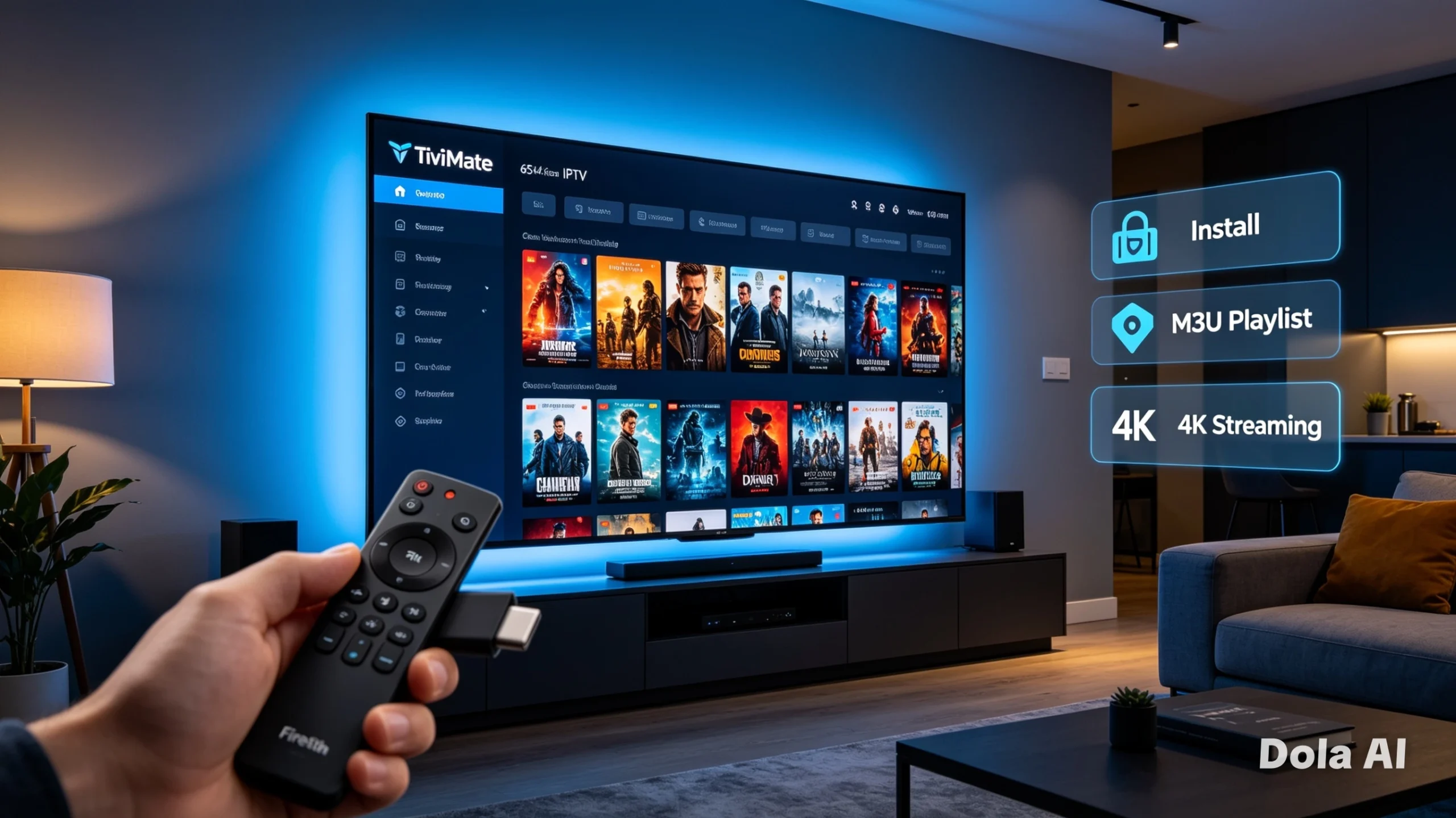
TiviMate has indisputably become the “gold standard” for IPTV players in 2026. For millions of cord-cutters using an Amazon Firestick, it provides the perfect balance between a professional cable-box interface and the flexibility of modern streaming technology. If you are looking to elevate your viewing experience, learning how to install TiviMate on Firestick is the most significant upgrade you can perform. This comprehensive 2500-word guide will walk you through everything you need to know to achieve a seamless, professional, and stable setup.
1. Why TiviMate is the Best Choice for Firestick
In a market saturated with mediocre apps, TiviMate stands out because it was designed specifically for “lean-back” TV experiences. While many players feel like repurposed mobile apps, TiviMate feels native to the Firestick.
The Power of the Ecosystem
The Firestick’s remote control is perfectly mapped to TiviMate’s features. Whether you are browsing channels, accessing the EPG, or toggling between groups, the app responds with a level of fluidity that other players struggle to match. By the end of this guide, your device will no longer be just a “streaming stick”—it will be a full-fledged media entertainment center.
2. Understanding TiviMate: Free vs. Premium
Before we dive into the installation, it is crucial to understand why many users eventually opt for the Premium version. While the free version is functional, it is essentially a “lite” experience.
Feature Comparison Table
| Feature | TiviMate Free | TiviMate Premium |
| Interface | Basic | Highly Customizable |
| Multiple Playlists | Limited | Unlimited |
| EPG Updates | Manual/Limited | Full Automatic |
| Recording | Not Available | Supported (via USB/Storage) |
| Multi-Screen/Multiview | No | Yes (Up to 9 screens) |
| Favorites Management | Limited | Full Control |
Why go Premium? For an avid IPTV user in 2026, the recording feature and the ability to manage multiple playlists (e.g., separating sports, movies, and international TV) are essential. Furthermore, the Multi-View feature—which allows you to watch up to nine channels at once—is a game-changer for sports fans who don’t want to miss a single moment of the action.
3. Preparation: Setting Up Your Firestick for Success
Because TiviMate is not available in the official Amazon Appstore, we must “sideload” it. This is a safe and common procedure, but it requires two quick setting adjustments on your Firestick.
Step 1: Enable Developer Options
- Navigate to your Firestick Home Screen.
- Go to Settings (the gear icon on the far right).
- Select My Fire TV (or Device & Software on newer models).
- Select Developer Options.
- Turn Apps from Unknown Sources to ON.
- Ensure ADB Debugging is also set to ON (this ensures smooth communication between the system and the app).
Step 2: Install the “Downloader” App
The Downloader app is the bridge that allows you to fetch the official APK file directly from the developer’s servers.
- Go to the Search icon on your Firestick Home Screen.
- Type “Downloader” and select it from the results.
- Click Download or Get. Once finished, it will appear in your “Apps & Channels” menu.
4. How to Install TiviMate on Firestick (The Official Method)
Now that your environment is ready, let’s perform the actual installation. We will use the standard TiviMate Downloader code method.
The Installation Process
- Open the Downloader app.
- In the URL search bar, you can either enter the official website URL or use the TiviMate firestick downloader code if you have verified it from the developer’s trusted sources.
- Pro-Tip: Always prefer official links or codes provided directly by the developer to ensure you are downloading the genuine, malware-free version of the app.
- Click Go. The APK file will begin downloading automatically.
- Once the download reaches 100%, a prompt will appear asking to Install. Click Install.
- After the installation is finished, click Done.
- Crucial Step: When prompted, select Delete to remove the APK installer file. This clears up valuable storage space on your Firestick.
5. Configuring TiviMate for Optimal Performance
Installation is only half the battle. To get the “cable-like” experience, we need to configure your sources correctly.
Adding Your Playlist
- Open TiviMate.
- Select Add Playlist.
- You will be prompted to enter your M3U playlist URL provided by your IPTV service provider.
- If your provider supplies a separate EPG URL, enter it in the EPG section.
- Wait a few moments while TiviMate processes your channels and guide data.
Optimizing Decoding
If you notice stuttering (especially on Firestick Lite or older models):
- Go to Settings > Playback.
- Look for Decoder.
- Toggle between Hardware and Software decoding. Generally, “Hardware” is better for 4K and high-bitrate streams, but “Software” can fix issues with audio-video sync on older devices.
Frequently Asked Questions (FAQ)
1. Is TiviMate legal to use on my Firestick? TiviMate itself is a legal media player application that does not host or provide any content. Its legality depends entirely on how you use it and whether the IPTV service you link to it provides authorized, licensed content. Always ensure you have the rights to the content you are streaming.
2. Can I use TiviMate on Roku or Apple TV? Currently, TiviMate is exclusively developed for Android-based devices (like Firestick, Nvidia Shield, and Android TV). It is not available for Roku or Apple TV devices. If you are a Roku user, you may need to consider an Android-based streaming device to utilize TiviMate.
3. Does TiviMate work on Windows or Mac computers? TiviMate is not natively available for Windows or Mac. However, you can run it on your PC by using an Android Emulator (like Bluestacks). Please note that the experience is optimized for TV remotes, so it may feel different when using a mouse and keyboard on a computer.
4. Why is my TiviMate EPG not updating? If your EPG is not updating, check your internet connection first. Then, go to Settings > EPG > EPG Sources and ensure your URL is active. You can also manually trigger an update by selecting “Update EPG” in the main menu. If the problem persists, ensure your IPTV provider has not changed their EPG URL.
5. How many devices can I use with a TiviMate Premium subscription? A single TiviMate Premium subscription allows you to activate up to 5 devices using the same account. You can manage your activated devices through the “TiviMate Companion” app on your Android phone.
6. What is the best IPTV service to use with TiviMate? The best IPTV service for TiviMate is one that provides a stable M3U playlist URL, high-quality 4K streams, and a reliable, updated EPG. Since service providers change frequently, we recommend looking for services that offer a trial period so you can test the stability within TiviMate before committing to a long-term plan.
Leave a Reply