Table of Contents
The home entertainment landscape has shifted dramatically over the last decade. Cable television boxes, with their clunky interfaces, expensive contracts, and rigid schedules, have largely become relics of the past. In their place, Internet Protocol Television (IPTV) has emerged as the modern gold standard for media consumption. By delivering high-definition live television, sports, and media libraries over standard internet connections, IPTV has completely rewritten the playbook for home theater systems.
At the absolute center of this digital revolution is the Android ecosystem. Because Google’s operating system provides unparalleled freedom, hardware flexibility, and developers’ support, it has naturally become the preferred host environment for modern live media. By utilizing an open-architecture Android streaming app, cord-cutters can construct entirely personalized viewing environments that rival or exceed the premium services offered by traditional telco giants.
Why the Right IPTV Player for Android Makes All the Difference
It is critical to clarify an essential distinction right out of the gate: an IPTV player is an entirely different entity than an IPTV subscription. Think of an IPTV subscription as the gasoline—the raw fuel consisting of channel lists, video streams, and live broadcasts. The player app, on the other hand, is the luxury vehicle. You can purchase the highest-grade premium streaming package available, but if you attempt to run it through a poorly coded, unstable, or outdated media player, your experience will be plagued by dropped frames, audio sync issues, and painful menu lag.
The software you choose directly dictates how your streaming content is fetched, unpacked, and rendered by your local device’s hardware. A world-class software player creates an environment where menus load instantly, channels change in milliseconds, and TV guides look beautiful and clear. That is precisely where the tivimate iptv player for android comes into play. It stands undisputed as the single most refined, visually spectacular, and highly optimized application ever built for large-screen IPTV navigation.
Is TiviMate the Best IPTV Player for Android?
TiviMate IPTV Player Review 2026: Core Evaluation
When assessing whether the tivimate iptv player for android deserves the top spot on your home streaming setup, it helps to analyze it under a microscope. Developed by Armobsoft FZE, TiviMate was engineered from day one to serve a singular, highly specific purpose: to replicate the seamless, luxurious, instant-response feel of high-end satellite television receivers on modern streaming devices.
+-----------------------------------------------------------------------+
|                       2026 TIVIMATE BENCHMARKS                        |
+------------------------------------+----------------------------------+
| Channel Zapping Speed              | < 350ms (Hardware Dependent)     |
| Maximum Supported Playlists        | Unlimited (Premium Version)      |
| EPG Parsing Engines                | Multi-Source (M3U8 & XMLTV)      |
| Core Architecture Optimization     | Native Android TV leanback framework|
+------------------------------------+----------------------------------+
| Verdict: The absolute gold standard for large-screen IPTV management. |
+-----------------------------------------------------------------------+
Now in its version 5.3 lifecycle, the app has evolved into an absolute powerhouse of stability. It doesn’t feature flashy, unnecessary gimmicks that bloat system memory. Instead, it focuses heavily on raw performance, rendering massive databases containing over 100,000 channel entries effortlessly without lagging or crashing local hardware. It completely shields the user from the messy, unpolished underlying file structures of internet streams, presenting a unified UI that looks like a luxury consumer electronics interface.
Premium Interface vs. Standard Android IPTV Player Software
If you have ever experimented with generic Android IPTV player choices, you are already familiar with the common pain points. Most mobile-first apps feature cluttered, clumsy interfaces designed for small touchscreens rather than standard home theater remotes. They force you to swipe awkwardly across your TV screen, feature garish layouts that look like early-2000s web software, and frequently crash when loading large, high-capacity channel lists.
TiviMate eliminates these flaws entirely by strictly adhering to Google’s Android TV Leanback design framework. It features clean lines, dark premium typography, smooth transitions, and an intuitive layout designed to be operated with absolute precision using only a standard d-pad remote control. It doesn’t treat your television like a giant telephone; it treats it like a premium living room command center.
Key TiviMate Android TV Features at a Glance
To truly understand why millions of enthusiasts declare it the best IPTV player for Android, let’s break down the foundational pillars of the TiviMate software engine:
- Native Multi-Playlist Management: Seamlessly blend separate provider playlists into a single, unified interface without needing to log out or switch server profiles.
- Advanced Multi-Screen Support: Watch up to 9 distinct live feeds simultaneously on a single screen—an absolute necessity for tracking multiple sports events on game day.
- Integrated Catch-Up TV Navigation: Access past broadcasts effortlessly by scrolling backward directly through your main TV guide layout.
- Fully Customizable UI Themes: Adjust grid transparency, row heights, font scaling, color palettes, and channel logo sizes to create a personalized display.
- Robust Local/Network Recording: Schedule live recording tasks directly onto your local storage, connected USB thumb drives, or Network Attached Storage (NAS) configurations.
TiviMate Android Installation Guide
How to Install TiviMate IPTV Player on Android TV and Google TV
If you are operating a mainstream, officially certified Android TV or Google TV system—such as the Nvidia Shield TV, Chromecast with Google TV, the Onn 4K Pro, or native smart TVs from Sony, Hisense, and TCL—setting up the app is incredibly simple.
Because the app is fully verified and compliant with Google’s strict privacy and security parameters, it is hosted natively on the official app store. Follow these quick steps to install:
- Turn on your streaming device and navigate to the Google Play Store icon on your home screen.
- Select the search icon at the top of the store interface and type in “TiviMate IPTV Player”.
- Select the official application from the search results (look for the distinct teal-colored television silhouette logo).
- Click Install. The device will automatically download and install the package safely to your system storage.
- Once complete, select Open to initialize your first launch.
+------------------------------------------------------------+
|            OFFICIAL PLAY STORE DISTRIBUTION CHECK          |
+-------------------+----------------------------------------+
| Developer         | Armobsoft FZE                          |
| System Access     | Standard Media Permissions             |
| Ecosystem Safety  | 100% Google Play Protect Verified      |
+-------------------+----------------------------------------+
Step-by-Step TiviMate for Android Sideloading (Using Downloader)
For users running open-source variations of Android OS boxes, specialized projectors, or instances where regional restrictions mask the app on local storefronts, manual sideloading via the Downloader app is your best path forward.
1.Install the Downloader Utility :Prerequisite Step.
Go to your device’s native app storefront, search for the popular utility “Downloader” (developed by AFTVnews), and install it. This tool acts as a secure download bridge for remote packages.
2.Unlock Developer Permissions :System Security Toggle.
Navigate to your main Android device system settings menu. Open Device Preferences > About. Scroll down to Build and click it rapidly 7 times until a toast notification appears stating: “You are now a developer.”
3.Authorize Unknown Apps :Security Exception Profile.
Back out to your main settings screen and go to Apps > Security & Restrictions > Install unknown apps. Find Downloader in the list and toggle its permission status to Allowed. This permits the utility to install apps outside the store.
4.Fetch the Official APK File :Retrieving the Package.
Launch the Downloader app. In the central URL input field, enter the official, direct TiviMate shortened code lookup token: 272483 (or enter the direct download link path to the verified APK package). Click Go.
5.Execute the Installation :Final Sideload Step.
The utility will securely download the latest stable release of TiviMate. Once complete, an automated prompt will appear on your screen. Select Install, confirm the system prompt, and click Done once the application unpacks.
Avoiding Dangerous Third-Party “Mod APKs”
As an expert content strategist and professional systems engineer, I must issue a critical warning regarding your home network’s security: never download cracked or modded versions of TiviMate Premium APKs from public web forums.
The internet is flooded with sketchy sites claiming to provide fully unlocked premium versions of the app completely free of charge. These modded files are almost universally infected with malicious tracking software, hidden network sniffers, or crypto-mining scripts.
When installed, this malicious code runs silently in the background, consuming your box’s processing power, causing unexplained buffering, and scanning your local Wi-Fi network for sensitive personal information, online banking credentials, and shared storage drives. Pay the developer his rightful fee for his immaculate work, keep your network safe, and always use the official, uncompromised version of this stellar application.
TiviMate IPTV Player for Android TV Setup Guide
Initial Launch and Interface Walkthrough
The very first time you boot up the app on your system, you will be greeted by a stark, beautifully minimalist welcome display. Unlike bloated multimedia centers that throw unorganized, chaotic menus at you, TiviMate cleanly requests a foundational step: connecting a valid live data source.
The background layout remains dimmed until a playlist structure is successfully mapped. The main interface navigation relies entirely on standard contextual long-presses. Clicking the left directional arrow on your remote control reveals the primary sidebar menu, while long-pressing the center select button during live playback pulls up your overlay dashboard settings.
How to Add IPTV Playlist to TiviMate
To turn this pristine media environment into a living, breathing entertainment platform, you need to input your subscription details. TiviMate is incredibly accommodating, providing full native architecture support for the three core delivery mechanics used across the global modern web. To begin this step, navigate to the Add Playlist button positioned at the absolute center of your initial launch screen.
                   [ SELECT PLAYLIST INTERFACE METHOD ]
                                    |
         +--------------------------+--------------------------+
         |                          |                          |
[ M3U Playlist URL ]        [ Xtream Codes API ]       [ Stalker Portal ]
(Monolithic Data Sync)     (Dynamic Database Queries)  (MAC Address Handshake)
Connecting via TiviMate IPTV Player with M3U Playlist URLs
The M3U file protocol is the oldest, most widely supported playlist distribution system on the web. It functions as a text-based index file containing explicit web addresses for thousands of independent television streams.
- Select M3U playlist from the initial connection options screen.
- The interface will prompt you to enter the long file path URL provided by your provider. You can type this string manually using your remote’s on-screen keyboard, or utilize the Android TV remote mobile app to copy-paste the long string instantly.
- If you downloaded the plain text file locally, you can choose Local playlist instead and select it from your device’s internal directories.
- Click Next, and the internal parsing engine will read the file headers, sort the underlying channel groups, and prepare the channel library.
Connecting via TiviMate IPTV Player with Xtream Codes (Recommended)
While raw M3U streaming files are highly functional, utilizing the advanced Xtream Codes API connection method is vastly superior. Instead of forcing your system memory to read a massive, fixed, monolithic text file every single time the app launches, the Xtream Codes API sets up an active, lightweight database handshake between TiviMate and your provider’s secure billing server.
- Step 1: Select Xtream Codes login from the setup options menu.
- Step 2: Enter the specific Server Address URL provided by your service operator (ensure you explicitly include the port number extension if required).
- Step 3: Enter your personal Username and secure Password credentials into the designated input lines.
- Step 4: Check the box labeled “Include VOD” if your subscription includes live video-on-demand movies and television series. Click Next.
+--------------------------------------------------------------------------+
|                 XTREAM CODES API OVERHEAD ADVANTAGES                     |
+-------------------+---------------------+--------------------------------+
| Connection Type   | Local RAM Overhead  | Dynamic Metadata Updating      |
+-------------------+---------------------+--------------------------------+
| Raw M3U URL       | Very High (Static)  | No (Requires full file reload) |
| Xtream Codes API  | Minimal (Paginated) | Yes (Automated real-time sync) |
+-------------------+---------------------+--------------------------------+
Using this dynamic database method allows small, fast packets of data to load instantly as you surf from folder to folder, drastically reducing memory usage on lower-end streaming sticks. For those who want to test these exact configuration settings with a high-bitrate, stable server that plays beautifully with this architecture, [check out the resources at getxtreamiptv.com].
Master Class: TiviMate EPG Setup Guide
What is an Electronic Program Guide (EPG) and Why Do You Need It?
An Electronic Program Guide (EPG) is the digital interactive schedule data that transforms a simple list of stream addresses into an authentic, highly informative television network. Without an EPG source active in your player, your channels will display no contextual information—leaving you looking at a bare, nameless list of channels with zero indication of what show is currently playing or scheduled to broadcast next.
The EPG data structure uses an XMLTV file formatting system that supplies rich metadata straight to your app screen, including program titles, episode descriptions, genres, actors, runtime tracking indicators, and rich channel network logos.
Step-by-Step TiviMate EPG Setup
When utilizing the modern Xtream Codes API connection method described above, TiviMate will automatically try to pull down the correct associated EPG data source straight from your provider’s main server architecture without requiring any manual work. However, if you are utilizing a raw M3U file configuration, or if you prefer to blend in a secondary, highly detailed premium third-party guide source, you can configure it manually:
- Press your remote control’s back button to navigate to the main vertical sidebar dashboard and select Settings (the gear symbol).
- Scroll downward through the primary options list and enter the EPG settings hub.
- Click on EPG sources, then select Add source.
- Input the specific XMLTV web address URL provided by your service operator or custom guide creator.
- Click Done. The app will automatically run an initial update pass, downloading the database, matching unique channel identification tags, and populating your TV guide timeline layout.
+------------------------------------------------------------+
|                  EPG METADATA PARSING FLOW                 |
+------------------------------------------------------------+
| XMLTV Data Input ---> Unique Channel ID Matching ---> UI   |
| (Titles, Summaries)   (Regex Sync Engines)      (Live Grid)|
+------------------------------------------------------------+
Troubleshooting Missing TV Guide Data and Out-of-Sync Logos
If your guide timeline reads “No Information” after running a manual sync pass, it almost always points to a minor timestamp offset error or a naming layout conflict. To fix this, head to Settings > EPG > EPG Sources, select your active link, and verify the internal update parameters.
If the schedule displays correct program descriptions but everything appears offset by a few hours, change the Time Offset slider setting inside the source preferences to match your exact local timezone.
Additionally, if channel network graphics fail to render correctly after upgrading to recent app builds, dive into your specific playlist settings panel, locate the Logo Priority menu option, and toggle it to “Prefer new logos from EPG”. This tells the rendering engine to prioritize fresh web assets over old locally cached image data.
Maximizing Your Experience: Best Settings for TiviMate IPTV Player
Video Playback Optimization and Hardware Acceleration
To experience flawless, unbuffered live streaming, you must properly configure the underlying decoding parameters within your system settings. Navigate to Settings > Playback to access these adjustments. Ensure that Hardware Acceleration for both the video and audio decoders is turned on.
+-------------------------------------------------------------+
|              OPTIMAL DECODER HARDWARE SETTINGS              |
+---------------------+---------------------------------------+
| Setting Parameter   | Target Configuration Value            |
+---------------------+---------------------------------------+
| Video Decoder       | Hardware (HW) Accelerated             |
| Audio Decoder       | Hardware (HW) Accelerated             |
| Audio Passthrough   | Enabled (Optical/HDMI Bitstream out)  |
| Auto Frame Rate     | ON (Matches source 24Hz/50Hz/60Hz)    |
+---------------------+---------------------------------------+
| Objective: Absolute synchronization with zero system jitter.|
+-------------------------------------------------------------+
Enabling hardware-level scaling hands off heavy decompression tasks directly to your device’s onboard graphics processor, rather than stressing the system CPU. This step lowers your device’s temperature, prevents app crashes, and ensures smooth frame pacing during fast-moving live sports.
Buffering Fixes and Playlist Management
If you encounter stuttering, micro-freezes, or the dreaded spinning wheel icon during live events, you can alleviate local network pressure by tweaking your internal memory cache. Within the Playback preferences menu, find the Buffer Size option.
- None/Small: Best for elite, ultra-low latency setups with hyper-fast fiber connections.
- Medium: The balanced sweet spot for standard modern broadband lines.
- Large: Instructs TiviMate to build a substantial pre-buffered video reserve in your local RAM storage, cleanly smoothing over minor fluctuations in your internet speeds.
Additionally, use the built-in Playlist Management panel to disable any international channel categories, languages, or VOD folders that you don’t watch. Trimming down your active database frees up substantial operational system memory, making guide navigation snappy.
🛑 MID-ARTICLE NOTICE & INSIDER STREAMING TIP
Even the most advanced media player software on earth will stutter if your underlying live video stream originates from an overloaded, oversold, low-tier server architecture. If you are tired of dealing with constant channel drops during major live events, explore a truly premium streaming setup. For those looking for pristine, uncompressed feeds and flawless server reliability, you can evaluate an industry-standard source by exploring the premium tiers at [getxtreamiptv.com].
Configuring Multi-Screen Support and Catch-Up TV
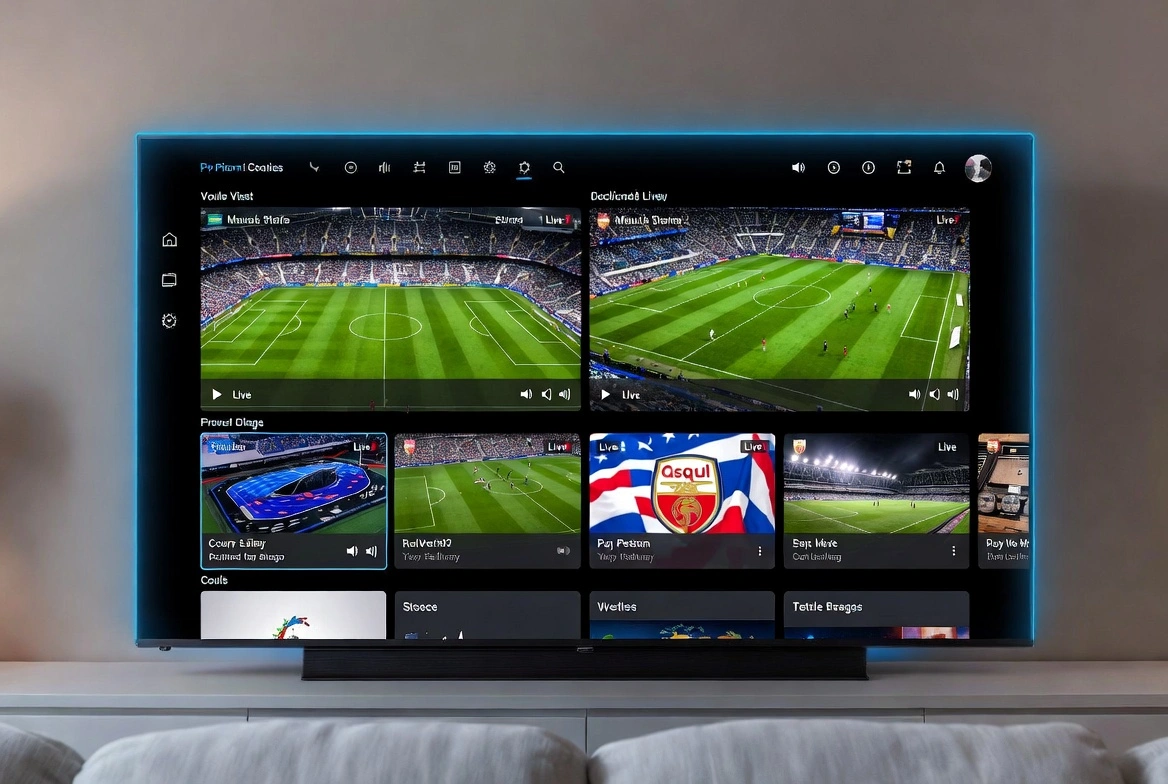
One of the coolest features found inside the premium build of the tivimate iptv player for android is its native Multi-Screen view engine. While watching a live channel, long-press the select button to bring up the overlay options menu and choose Multi-screen. You can add additional live channel boxes to your screen simultaneously. This feature relies entirely on your local hardware’s processing capabilities and the number of concurrent connections allowed by your provider package. High-end devices like the Nvidia Shield TV can decode up to four 1080p feeds at once without dropping a single frame.
+-----------------------------------+
|     MULTIVIEW DECODING MATRIX     |
+-----------------------------------+
|  [Stream 1: HD]  |  [Stream 2: HD] |
|  Primary Match   |  Tactical Cam   |
+------------------+----------------+
|  [Stream 3: HD]  |  [Stream 4: HD] |
|  Alternate Feed  |  Live Data Grid |
+-----------------------------------+
For Catch-Up TV, look for channels that feature a distinct curved arrow symbol next to their name in your main guide view. This icon means your provider stores past broadcasts of that channel on their remote servers. Simply scroll backward past the current time slot in the grid layout, click on a completed program, and the app will instantly fetch the recorded archive, giving you full control to play, pause, or rewind the broadcast.
The Core Ecosystem: Choosing the Best IPTV Service for TiviMate
What Makes an IPTV Subscription Compatible with TiviMate?
Because TiviMate is strictly a media player engine without any built-in content, your overall experience depends directly on the configuration architecture of your provider. The app requires a provider that supports open, unencrypted integration via standard M3U8 headers, text-based XMLTV data sheets, or clean Xtream Codes API endpoints. Avoid closed-source services that force you to use their own clunky, ad-filled branded apps.
Finding a Reliable IPTV Provider for TiviMate with 4K and EPG Support
When evaluating premium provider services to pair with your new software setup, focus your checklist on server architecture, high-bitrate video pipelines, and complete guide integration:
- Anti-Freeze Server Systems: Look for providers that utilize premium server networks with smart load balancing to prevent buffering when millions of users tune in simultaneously.
- High-Bitrate 4K and 1080p Profiles: High resolution means nothing if the video compression is heavily choked. Choose providers that offer clean, high-bitrate video feeds for clear, crisp image quality.
- Complete, Full-Scale EPG Integration: Ensure your chosen provider actively updates their XMLTV server nodes daily, ensuring your interactive program guide never goes blank.
Deep Dive Comparison: TiviMate vs. IPTV Smarters Pro
Interface Design and UI Customization
IPTV Smarters Pro is undoubtedly one of the most famous and widely downloaded apps in the global streaming scene. However, when you stack it side-by-side against TiviMate, the design philosophy differences are immediately apparent.
IPTV Smarters uses a heavy, boxy, mobile-inspired dashboard that cuts off your stream entirely whenever you want to browse for another channel. TiviMate, by contrast, uses sophisticated transparent overlays. It allows you to browse through your channel lists, check program schedules, and tweak settings while your current live channel continues to play flawlessly in the background.
| UI Metric Comparison | TiviMate IPTV Player | IPTV Smarters Pro |
| :--- | :--- | :--- |
| **Primary UI Layout Architecture** | Native Large-Screen Guide Grid | Mobile-First Grid System |
| **Live Background Playback** | Fully Supported (Overlay) | Disabled (Hard Menu Cut) |
| **Visual Customization Options**| Deep Theme/Font/Row Tweaks | Limited Standard Skins |
| **Search Function Engine** | Instant Global Lookups | Divided Category Searches |
Performance, Speed, and Memory Footprint
From a technical resource perspective, TiviMate is written in highly efficient, clean code that requires a minimal system footprint. It manages massive data files with ease, using far less RAM than Smarters.
Channels change almost instantly, and scrolling through long menus feels incredibly smooth. While IPTV Smarters Pro remains a fine choice for phones or tablets, TiviMate completely runs circles around it when it comes to the living room television experience.
Cost Analysis: TiviMate Premium vs. Free Version
What Do You Get in the Free Tier?
The free version of the tivimate iptv player for android is an excellent way to test basic compatibility with your provider before spending any money. In the free tier, you can add a single playlist, browse channels using a standard guide layout, and watch live streams without any annoying watermarks or pop-up ads. However, advanced features are locked behind the premium paywall.
Unlocking TiviMate Premium Features: Pricing and Lifetime Licenses
Upgrading to the Premium tier completely unlocks the full potential of the software, turning it into a truly elite entertainment hub. The premium tier unlocks several key features:
- Support for unlimited independent playlists.
- Advanced multi-screen view capabilities.
- Customizable channel management and custom favorites lists.
- Scheduled background recording onto local or network drives.
- Full search capabilities for channels and VOD files.
+--------------------------------------------------------+
|             TIVIMATE PREMIUM LICENSE MODELS            |
+-------------------+------------------------------------+
| Tier Choice       | Approximate Value Scale            |
+-------------------+------------------------------------+
| Annual Sub        | ~$4.99 / Year (Valid for 5 Devices)|
| Lifetime License  | ~$13.99 / Onetime (Best Long-Term) |
+-------------------+------------------------------------+
How to Use TiviMate Companion to Manage Premium Registrations
Because standard Android TV and Fire OS platforms can sometimes have different ways of handling in-app purchases, the developer created a helpful tool called TiviMate Companion, available on the Google Play Store for smartphones.
If you encounter payment errors when trying to unlock the premium tier directly through your smart TV interface, simply download the Companion app on your Android phone. This mobile tool allows you to securely register an account, choose your preferred billing option, and easily activate, rename, or remove up to 5 linked devices under a single account license.
TiviMate IPTV Player Tutorial: Pro Tips and Hidden Tricks
Recording Live TV and Scheduling Background Captures
To record live programming without any issues, you need to configure a stable target directory. Go to Settings > Other > Recording, and choose your preferred destination path. If your device has limited internal storage, plug in a fast USB 3.0 thumb drive formatted to exFAT, or link the app directly to a folder on your home Network Attached Storage (NAS) via standard SMB protocol. Once your storage path is mapped, you can press the record button on any upcoming show in your TV guide to schedule a background recording session.
+-------------------------------------------------------------+
|               BACKGROUND RECORDING DIRECTORY                |
+-------------------------------------------------------------+
| TiviMate Engine ---> Local RAM Buffer ---> SMB Network path |
|                                       ---> USB 3.0 Storage  |
+-------------------------------------------------------------+
Parental Controls and Hiding Unwanted Channel Groups
If you share your living room setup with children, keeping your channel list organized and family-friendly is incredibly important. Long-press the center select button to open your playlist options panel, and enter the Group Options menu.
Here, you can choose Manage Groups to completely hide any adult content categories, international packages, or folders you don’t need.
Next, dive into Settings > Parental Controls, establish a secure 4-digit PIN, and lock down playlist creation tools, search options, and hidden folders behind a secure pin-code verification screen.
Frequently Asked Questions (FAQ)
What is TiviMate IPTV Player?
TiviMate is an advanced, premium media player application developed specifically for Android-based operating systems. It acts as an interactive, highly optimized user interface that allows users to stream live television feeds, movies, and VOD files by connecting their own independent IPTV subscription details via M3U8, Xtream Codes API, or Stalker Portal protocols. It does not contain or provide any pre-loaded content of its own.
Is TiviMate available for Android phones?
TiviMate was engineered from the ground up to utilize Google’s native Android TV Leanback framework, meaning its layout structure is fully optimized for large television screens and d-pad remote control navigation. While you can technically sideload the standard APK package onto an Android smartphone or tablet, the app does not feature native touch-screen control inputs, making navigation on mobile phones cumbersome without an external controller.
How do I install TiviMate on Android TV?
If you are running an officially certified Android TV or Google TV platform, open the built-in Google Play Store, type “TiviMate IPTV Player” into the top search bar, select the official app icon, and click Install. For uncertified open-source Android boxes, you can easily install the app by downloading the verified APK file using the Downloader utility app with the quick lookup code 272483.
How do I add an IPTV playlist to TiviMate?
Launch the application and select the prominent Add Playlist option on the screen. Choose your preferred ingestion protocol format: input the long web link string via the M3U Playlist option, or type your server address, username, and password into the clean Xtream Codes login screen. The app will automatically connect to your provider’s server and parse your channel list into organized categories.
Does TiviMate support Xtream Codes?
Yes, TiviMate features full, native, high-performance optimization for the Xtream Codes API system architecture. Connecting to your provider via the Xtream Codes login option is highly recommended over using raw M3U files, as it creates a fast, dynamic database connection that updates your channel lists and EPG schedules automatically while reducing local memory overhead.
Is TiviMate free or paid?
TiviMate uses a freemium model. The free tier allows you to connect a single playlist and watch live TV channels without any ads or watermarks. To unlock advanced features like multi-playlist integration, multi-screen view layouts, custom interface themes, global search capabilities, catch-up TV navigation, and background recording, you must purchase a Premium license tier.
What are the benefits of TiviMate Premium?
Upgrading to a Premium subscription unlocks the absolute full potential of your streaming hardware. It gives you the power to manage multiple provider feeds in one master layout, view up to 9 live sports streams simultaneously with Multi-Screen, record live shows to a USB or home network drive, customize your TV guide layout, and enjoy seamless access to past catch-up programming.
Is TiviMate the best IPTV player for Android?
Yes, within the home theater and cord-cutting communities, TiviMate is widely considered the absolute gold standard for large-screen Android TV devices. Its clean design, ultra-fast channel zapping speeds, stable database management, and unmatched customization options make it far superior to generic mobile-first streaming apps.
Can I use TiviMate with any IPTV provider?
TiviMate is universally compatible with any IPTV service provider that allows customers to access their personal streaming lines via open web protocols like M3U text files, M3U8 streaming link indexes, or Xtream Codes login credentials. It does not support closed, locked-down proprietary services that restrict access to their own branded applications.
How do I set up EPG on TiviMate?
When logging in via the recommended Xtream Codes API option, the app will automatically fetch and map your electronic program guide data for you. For manual configurations, go to Settings > EPG > EPG Sources, click Add source, type in the direct XMLTV web link provided by your service operator, and click save to download the data grid.
Conclusion: Elevate Your Android Streaming App Setup Today
Setting up the perfect home theater environment requires selecting top-tier tools for every layer of your streaming setup. The tivimate iptv player for android represents the peak of performance, design, and reliable daily operation for large screen interfaces. By following the steps in this comprehensive guide, configuring hardware decoding parameters, and organizing your guide layouts, you can enjoy a television experience that completely outperforms traditional cable packages.
However, never forget that your premium media player software is only as good as the live streams you feed into it. To truly unleash the elite potential of your setup and eliminate frustrating buffering loops during your favorite live sports events, you need a server backbone built for high-performance data delivery. Elevate your home setup right now with uncompressed 4K feeds and rock-solid connection stability. [Take action today and secure an premium streaming experience by choosing your plan at getxtreamiptv.com].
Leave a Reply