Table of Contents
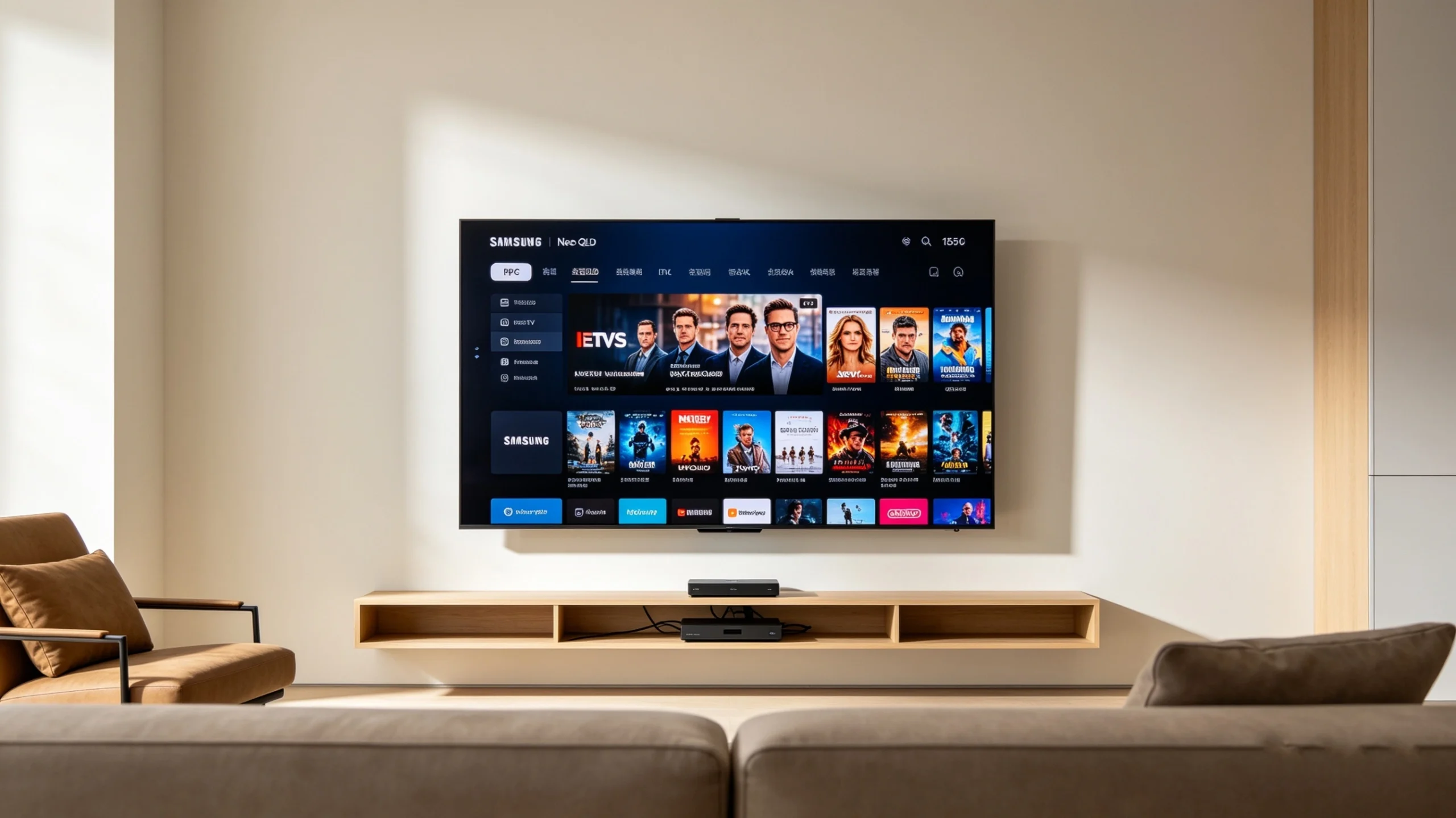
The dream of a clean, minimalist home entertainment center is often ruined by reality. You buy a beautiful, paper-thin smart television, mount it flush to your living room wall, and immediately realize you have to plug in an external Android box, a streaming stick, a power brick, and a messy web of trailing HDMI cables just to watch live global television.
But what if you could get rid of that external hardware completely?
If you own a modern Samsung television running Tizen OS, you do not need an external media box, a Firestick, or an Android TV device to unlock live TV channels, Video On Demand (VOD), and a fully populated Electronic Program Guide (EPG). Your TV has more than enough processing power to handle high-bitrate live television entirely on its own.
This comprehensive guide will show you exactly how to watch IPTV on Samsung TV without Android Box hardware, walking you through native applications, step-by-step software configuration, and advanced optimizations to ensure a smooth, buffer-free viewing experience.
The Big Question: Can Samsung Smart TV Run IPTV Without External Device?
The short answer is yes, absolutely. Many television owners assume that because Samsung uses its own custom operating system rather than Google’s Android TV platform, it cannot stream IPTV without an external player. This is a common misconception.
Understanding Samsung’s Native Tizen Architecture
Every Samsung smart television released over the last decade runs on a robust, Linux-based operating system called Samsung Tizen OS. Tizen is built specifically to maximize the efficiency of Samsung’s internal video processors, memory modules, and graphic engines.
Because it is a closed ecosystem, you cannot download standard Android .apk files directly from the internet. Instead, apps must be tailored and verified specifically for the Tizen Store.
In 2026, the ecosystem is highly mature. Developers have built powerful, native applications that sit directly inside the Samsung Smart Hub, allowing the television’s hardware decoders to process live internet streams directly without needing an intermediary device.
[Traditional Setup]:  IPTV Stream -> Android Box -> HDMI Cable -> Samsung TV (High Latency)
[Native Tizen Setup]: IPTV Stream -> Samsung Tizen OS App -> Internal Display Engine (Low Latency)
The Benefits of Native IPTV Streaming on Samsung TV
Ditching your external media hardware offers several major advantages:
- Single-Remote Convenience: You can control your channel guide, search functions, volume, and power using just your official Samsung solar remote. There is no need to balance multiple remotes or change HDMI inputs.
- Zero Input Lag or HDMI Bottlenecks: External boxes can introduce minor audio-video desynchronization or image degradation through poor-quality HDMI cables. Native streaming ensures direct-to-panel color space mapping and uncompressed audio pass-through.
- Decluttered Living Space: By using a native Samsung Tizen IPTV app, you eliminate unnecessary power bricks, dust-gathering streaming boxes, and exposed wires behind your television display.
Essential Prerequisites Before Getting Started
Before installing any applications, it is important to verify that your local network environment and subscription details are fully optimized for live media streaming.
Network Optimization for 4K IPTV Streaming
Live television broadcasts demand much more from your internet connection than on-demand platforms like Netflix or YouTube. Netflix can pre-buffer several minutes of a movie in advance, whereas live television delivers data packets in real-time. Even a momentary drop in data transfer rates will result in an immediate buffering wheel or a frozen stream.
For a completely stable viewing experience, aim for these minimum consistent download speeds:
- Standard Definition (SD): 10 Mbps
- High Definition (HD / 60 FPS): 25 Mbps
- 4K Ultra HD Streams: 50+ Mbps
Pro Tip: Whenever possible, bypass Wi-Fi entirely. Connect your Samsung TV directly to your home router using a physical Cat6 Ethernet cable. If a wired connection isn’t practical, ensure your TV is connected to your router’s 5GHz Wi-Fi band rather than the slower, more crowded 2.4GHz frequency, and minimize the distance and obstacles between the two devices.
Gathering Your IPTV Login Credentials
To link a streaming app to your channel package, your service provider must supply you with active authentication details. This information typically comes in one of two formats:
- The M3U Playlist URL: A long text link containing a direct path to the provider’s server directory (e.g.,
[http://iptv-provider.link:8080/get.php?auth=user&pass=xyz](http://iptv-provider.link:8080/get.php?auth=user&pass=xyz)). - The Xtream Codes API: A refined, database-driven triple-authentication login consisting of a clear Server URL, a unique Username, and a secure Password.
Using the Xtream Codes API is highly recommended for Samsung televisions. It is significantly faster, uses less of the TV’s memory, and updates your channel listings and program guide dynamically every time you open the application.
Top 5 Best IPTV Apps for Samsung TV Without Android Box
The official Samsung App Store offers a variety of media players. To help you choose, we have highlighted the five most stable, high-performing options available today.
1. IPTV Smarters Pro (The Industry Standard)
Widely considered the most complete all-in-one media player for television displays, IPTV Smarters Pro offers a premium, cable-box-style layout.
+-------------------------------------------------------------+
|                      IPTV SMARTERS PRO                      |
+-------------------------------------------------------------+
|  [ LIVE TV ]     [ MOVIES ]     [ SERIES ]     [ CATCH-UP ] |
+-------------------------------------------------------------+
|  Features:                                                  |
|  - Full EPG Guide Integration                               |
|  - Master Search (Find channels instantly)                  |
|  - Native Parental Control Locks                            |
+-------------------------------------------------------------+
The app automatically organizes your subscription data into separate, clean menus for Live TV, Movies, and Series. It features an excellent multi-threaded loading engine that processes large channel lineups without slowing down the television’s system memory.
2. Smart IPTV (The Classic SIPTV Player)
Smart IPTV is an established, reliable, and minimalist player. It avoids heavy graphics and complex animations in favor of a clean, text-based channel grid that switches channels incredibly quickly.
Instead of typing long text lines on your TV remote, Smart IPTV uses your TV’s hardware MAC address. You simply upload your playlist link via an external website, and the channels sync instantly to your screen.
3. IBO Player Pro (The Modern High-Speed Alternative)
If you own a newer Neo QLED or OLED Samsung panel, IBO Player Pro is an exceptional choice. It is heavily optimized for modern Tizen firmware and uses built-in hardware acceleration to provide incredibly fast loading times.
The app supports multi-playlist indexing, allowing you to run a main subscription alongside an international backup package simultaneously, switching between them with just two clicks.
4. Net IPTV / SET IPTV
These two lightweight applications are ideal if you are using an older or entry-level Samsung Smart TV. They omit resource-heavy visuals to keep background processing low, ensuring that older TV hardware can decompress high-bitrate video streams smoothly without crashing.
5. Nanomid Player
Nanomid Player is a premium, secure option that includes advanced networking protocols designed to minimize data packet losses. It features a modern, translucent dashboard layout and excels at displaying rich on-demand metadata, box art, and subtitles.
Step-by-Step Samsung Smart TV IPTV Setup Guide (No Box Required)
Once you have selected your preferred application, follow these step-by-step instructions to configure your native streaming setup.
Phase 1: Locating and Installing Your Chosen App from the Samsung Apps Store
First, power on your television and clear any background processes.
1.Access the App Directory :1-2 Mins.
Press the Home button on your remote to open the Smart Hub menu bar. Scroll left and select the official Apps store tile.
2.Search for Your Player :1 Min.
Select the Search magnifying glass in the top-right corner. Type in your chosen application name, such as IPTV Smarters Pro or IBO Player.
3.Install and Pin to Home :2 Mins.
Highlight the official application tile, click Install, and then select Add to Home so the app is always easily accessible from your main menu tray.
Phase 2: Configuring IPTV on Samsung TV Using M3U Playlist
If your provider only supplied a standard M3U text link, use this web-syncing method to avoid typing long characters with your TV remote:
- Launch the installed app (e.g., Smart IPTV or Net IPTV) on your television.
- Write down the unique, 12-character alphanumeric MAC Address displayed on the screen (e.g.,
aa:bb:cc:dd:ee:ff). - On your smartphone or laptop, visit the application’s official playlist upload portal (such as
siptv.app/mylistornetiptv.eu/upload). - Enter your television’s MAC address into the designated field on the website.
- Paste your long M3U Playlist URL link into the corresponding link box.
- Click Save or Send, then restart the app on your Samsung TV to pull your channel line directly from the cloud.
Phase 3: Connecting IPTV on Samsung TV with Xtream Codes
If your service provider offers an Xtream Codes login, use this direct database connection for faster, more reliable performance.
Plaintext
+---------------------------------------------------------+
|                  XTREAM API INTEGRATION                 |
+---------------------------------------------------------+
|  Profile Name: [ GetXtream Line                       ] |
|  Username:     [ user_samsung2026                     ] |
|  Password:     [ ****************                     ] |
|  Server URL:   [ http://premium-stream.xyz:8080       ] |
+---------------------------------------------------------+
|                    [ ACTIVATE STREAM ]                  |
+---------------------------------------------------------+
- Open your chosen app and select the option explicitly labeled “Login with Xtream Codes API”.
- In the first box, type any nickname you like (e.g.,
Main Stream). - In the second and third boxes, carefully enter your unique Username and Password. Remember that these values are strictly case-sensitive.
- In the final box, type the complete Server URL (including the specific port number, like
:8080or:80). - Select Add User or Login. Keep the television powered on while the app downloads and organizes your live channels, movie libraries, and guide listings.
How to Install IPTV on Samsung Smart TV Without Android Box (Regional Workarounds)
Depending on your country or current location, certain applications like IPTV Smarters Pro may occasionally be hidden or restricted in your local version of the Samsung App Store due to regional digital distribution policies. If you run into this issue, you can use these verified alternative installation methods.
Unlocking Apps via Samsung Smart Hub Region Change
You can temporarily change your Smart Hub’s country setting to access a broader application library without affecting your television’s core language settings.
- Go to your TV’s main Settings panel, select All Settings, and click into General & Privacy > Reset to clear out temporary regional blocks.
- Start the initial setup wizard again. When you arrive at the Terms & Conditions page, press the following button combination on your physical remote control:
- On standard remotes:
Mute->Return->Volume Up->Channel Up->Mute - On smart remotes: Press
Volume Up,Channel Up,Volume Downin rapid succession.
- On standard remotes:
- A hidden country list menu will appear on your screen. Select a broad distribution region, such as the United States, United Kingdom, or San Marino.
- Complete the setup. Your Smart Hub will refresh, giving you full access to download any missing native players instantly.
Manual USB Installation for Advanced Tizen Ecosystems
If you are comfortable with basic technical files, you can manually sideload compatible software packages onto your television using an external storage drive.
[FAT32 USB Drive] ---> Root Folder: 'userwidget' ---> Copy app file (.wgt) ---> Plug into TV USB
- Take a standard USB flash drive and format it to FAT32 on your computer.
- Create a brand-new folder in the root directory of the drive and name it exactly
userwidget. - Download the verified, native Tizen
.wgtapplication installation package file from your chosen player’s official developer website and paste it directly into that folder. - Power down your Samsung TV completely. Plug the USB drive into the TV’s primary USB 1 (HDD) port on the back or side panel.
- Power the television back on. Tizen OS will automatically detect the custom directory structure, read the file, and display an on-screen notification confirming the installation. Once complete, you can remove the USB drive.
Deep Dive: Maximizing EPG, VOD, and Catch-Up TV Features
Once your application is up and running, you can fine-tune its features to replicate a premium satellite or cable box experience.
Synchronizing Your Electronic Program Guide (EPG Guide)
An EPG Guide relies on a structured XML timeline database to display program names, run times, episode summaries, and calendar grids.
If your channel names load correctly but your guide shows empty rows or says “No Information Available,” your app’s internal database cache may be out of sync. To resolve this, navigate to your player’s internal Settings panel, find the Refresh Sources tab, and click Force EPG Update. This clears out old data and pulls a fresh, accurate schedule directory down from your provider’s servers.
Accessing Video On Demand (VOD) and Catch-Up TV Natively
- Video On Demand (VOD): Native applications like IPTV Smarters Pro or IBO Player process modern movie file extensions effortlessly. They read metadata to display high-resolution movie posters, IMDB ratings, actor lists, and plot summaries directly on your screen.
- Catch-Up TV: If your service package includes Catch-Up features, you can rewatch past broadcasts of live events directly from your channel guide grid. Simply scroll backward in time on your guide map and click the select button on a past show to stream the recorded file instantly from the server cloud.
For viewers looking to test these settings with a high-bitrate, stable server that supports full 4K and responsive EPG mapping, [check out the resources at getxtreamiptv.com].
Troubleshooting Buffer Loops, Black Screens, and Audio Sync Failures
Smart televisions handle data within an isolated memory sandbox to keep the system responsive. Minor technical hiccups can occasionally occur, but these can usually be fixed with a few simple adjustments.
Resolving Samsung Tizen IPTV Setup Without External Hardware Glitches
Unlike an external Android box with large cooling fans and separate RAM chips, your television must balance video decoding alongside image upscaling and audio processing. If your app begins to freeze or lag, the issue is often a saturated system cache.
To perform a clean system clear:
- Point your remote control directly at the television while it is powered on.
- Press and hold the Power button down continuously.
- Do not let go when the screen goes dark. Continue holding the button until you see the official Samsung smart startup logo reappear on the panel. This cold-boots the operating system, flushes out trapped cache files, and restores fast app performance.
Solving the “M3U Playlist Failing to Load” Dilemma
If your application displays a connection timeout or an “Error Loading Playlist” code, verify these three common issues:
- Character Length Limits: Tizen’s built-in web browser engines can occasionally drop characters if an M3U link is longer than 255 characters. If this happens, use an online URL shortener (like TinyURL or Bitly) to compress the link before uploading it to your player’s web management site.
- Syntax and Spelling: Double-check that you haven’t substituted a lowercase
lfor a number1, or an uppercaseOfor a number0in your server address or username string. - ISP Blocks: Some internet service providers deploy automated firewall systems that can mistake streaming servers for unauthorized network traffic. Changing your TV’s DNS routing manually often completely resolves this issue.
Audio/Video Desynchronization and Codec Mismatches
If you open a movie or channel and find that the audio tracks do not line up with the actors’ lip movements, or the screen remains black while the audio plays normally, the issue is an internal video decoding conflict.
To fix this, open your media player’s primary Settings menu and look for Player Selection or Stream Format. Toggle the internal playback engine setting from Native Player to Hardware Player (or vice versa). This forces the app to change the underlying software decoder it uses to read the incoming video stream, which typically fixes audio timing and black-screen errors instantly.
The Definitive Comparison: Native Tizen App vs. External Android Hardware
To illustrate why eliminating an external box is highly beneficial, let’s look at how a native Tizen OS app configuration compares directly to using an external Android device across key categories:
| Performance Metric | Native Tizen OS Application | External Android Streaming Hardware |
| Initial Equipment Cost | $0 (Uses your existing television hardware) | $35 to $150+ for a streaming box or stick |
| Living Room Aesthetics | Clean, minimalist look with zero visible wires | Visible cords, trailing power adapters, extra boxes |
| Remote Control Layout | One official remote handles all system functions | Multiple remotes or complex button pairing required |
| Audio/Video Routing | Direct-to-panel decoding with no quality loss | Subject to HDMI cable quality and port degradation |
| Interface Navigation Speed | Fast, but depends on your TV’s processor | Snappy, but adds extra menu layers to navigate |
Choosing a Premium IPTV for Samsung Smart TV
A media application is ultimately only as good as the server streams fueling it under the hood. Understanding what makes a high-quality connection option unique helps ensure you get a reliable, high-performing service.
Avoid Common Traps: Free Lists vs. Stable Servers
It can be tempting to use free playlist links found on public online forums, but these public lists come with significant downsides. Because thousands of users try to connect to them simultaneously, public lines suffer from constant buffering loops, broken stream links, and severe pixelation.
Furthermore, public lists often lack encryption protocols, which can expose your home network’s IP address to online security risks. True server management, data hosting, and stream maintenance carry ongoing monthly costs. Realistic, professional providers offer structured, secure billing plans alongside robust server networks to protect your connection.
Essential Features of a Safe, Modern IPTV Provider
When searching for a premium service package to connect to your Samsung television, look for these three key technical features:
- H.264 & HEVC/H.265 Compression: Modern video compression standards that let you stream crisp Full HD and 4K video smoothly, even on modest internet connections.
- Anti-Freeze Server Architecture: Redundant server networks that automatically re-route data packets if a server node experiences heavy traffic during major live sporting events.
- Regular VOD Library Updates: Automated content systems that refresh movie and series libraries with new releases, official cover art, and accurate multi-language subtitle tracks.
🛠️ Pre-Flight Setup Checklist
To experience your display’s full performance with a stable, high-speed connection, [check out the trial options and resources available at getxtreamiptv.com].
Frequently Asked Questions (FAQ)
Can I watch IPTV on Samsung TV without an Android box?
Yes, absolutely. By downloading a native media player application (such as IPTV Smarters Pro or IBO Player Pro) directly from the official built-in Samsung Smart Hub store, you can stream live television and on-demand content using just your TV’s internal processing hardware.
Does Samsung Smart TV support IPTV apps?
Yes, Samsung Smart TVs fully support a wide selection of third-party media players designed specifically for Tizen OS. These applications act as an interactive user interface shell, utilizing the television’s built-in hardware decoders to process live video streams.
What is the best IPTV app for Samsung TV?
IPTV Smarters Pro is widely considered the best all-around choice due to its premium, cable-box-style layout and robust search features. For newer Samsung models, IBO Player Pro or SmartOne IPTV are excellent alternatives built specifically for fast performance and near-instant channel changes.
Can I install IPTV Smarters on Samsung TV?
Yes. IPTV Smarters Pro is officially available to download directly inside the Samsung App Store across most global regions. If it is temporarily hidden in your area due to local App Store filters, you can access it easily by performing a quick Smart Hub region change or installing it manually via a USB flash drive.
How do I add an M3U playlist to Samsung Smart TV?
Launch your chosen player app on the TV and find its unique hardware MAC address. On your phone or computer, visit the player app’s official playlist upload website, enter your TV’s MAC address, and paste your long M3U playlist link to sync your channels instantly to your screen.
Can Samsung Tizen run IPTV directly?
Yes, Samsung Tizen OS can process live IPTV data streams natively through verified applications found in the Smart Hub. This allows you to browse live channels, view program schedules, and stream movies without needing any external streaming devices.
Do I need a Firestick for IPTV on Samsung TV?
No, a Firestick is completely unnecessary if you own a Samsung Smart TV. Tizen OS features its own dedicated app ecosystem with native media players, allowing you to run your streaming packages directly through the TV itself.
How do I use Xtream Codes on Samsung Smart TV?
Open your chosen IPTV app and select the “Login with Xtream Codes API” option. Enter the Server URL, your unique Username, and your Password provided by your service provider, then click login to automatically load your organized channel directory.
Is IPTV legal on Samsung TVs?
IPTV software applications found in the official Samsung Smart Hub are completely legal. These apps are empty media players that contain no content on their own. The legality of the service depends entirely on the stream sources you connect to the app; ensure your service provider holds the appropriate distribution licenses for the programming they offer.
Which IPTV player works best on Samsung Tizen OS?
IPTV Smarters Pro works beautifully for users who want an organized, category-driven layout with rich metadata. If your main priorities are pure navigation speed, instant channel zapping, and managing multiple playlists simultaneously, IBO Player Pro or SmartOne IPTV are outstanding choices for Tizen OS.
Summary and Next Steps: Take Control of Your Living Room Space
Setting up a high-quality streaming experience on your Samsung television doesn’t require extra hardware, messy trailing cables, or complicated technical expertise. By installing a powerful, native app like IPTV Smarters Pro or IBO Player directly onto Tizen OS and connecting it via the efficient Xtream Codes API, you gain access to an automated, high-definition entertainment center using just your single television remote.
Don’t let crowded server routes, outdated playlist files, or poor connections get in the way of your entertainment. Take full advantage of your premium display’s capabilities today. For a rock-solid connection and access to high-speed, premium streaming infrastructure designed to run flawlessly on Samsung Tizen displays, upgrade your home entertainment setup by visiting getxtreamiptv.com.
Leave a Reply