Table of Contents
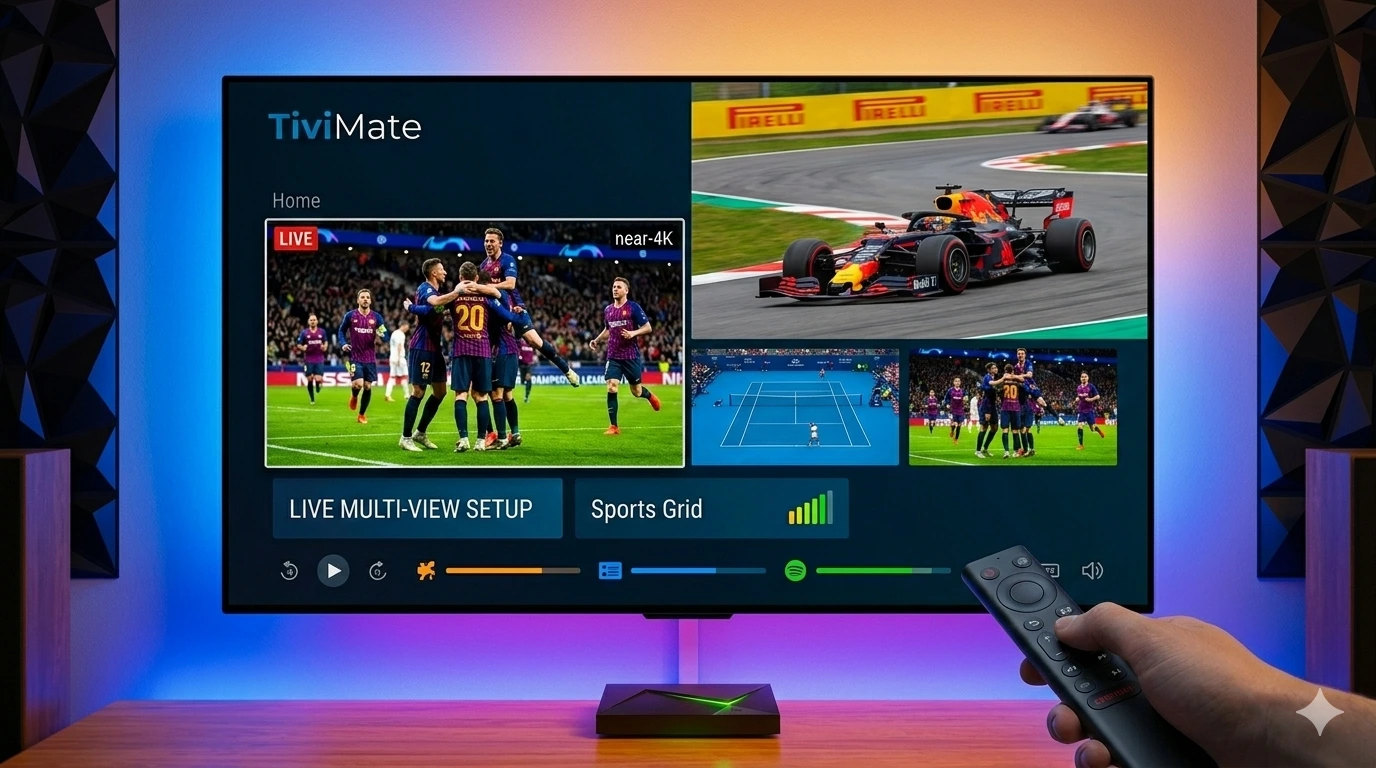
In the modern era of streaming, missing out on a simultaneous football kickoff or a championship tennis final is no longer an issue. For dedicated sports fans, the ability to watch multiple streams at once is not a luxury—it is a necessity. If you have been searching for how to Set Up Multi-View in TiviMate, you have arrived at the definitive 2026 guide.
1. The Power of Multi-View Streaming
Multi-view is arguably the most impressive feature of TiviMate. It transforms your living room into a high-tech sports bar, allowing you to monitor up to 10 live channels simultaneously. Whether you are tracking betting odds, watching multiple matches for fantasy sports, or simply refusing to choose between your favorite teams, TiviMate delivers an unmatched, professional-grade interface.
2. Critical Pre-requisites: The Multi-Connection Factor
Before we dive into the technical setup, there is a fundamental rule: Multi-view is a resource-intensive feature.
- The Subscription Requirement: To watch four streams at once, your IPTV provider must allow four simultaneous connections. Using a single-connection account will cause your stream to crash. If you are looking for reliable, high-bandwidth service that supports multiple streams, providers like getxtreamiptv.com are built to handle these heavy demands.
- Device Power: As discussed in our previous guide, a device like the Nvidia Shield Pro is ideal for Multi-view because it can decode multiple high-bitrate streams without overheating or stuttering.
3. Step-by-Step: Setting Up Multi-View in TiviMate
Follow these precise steps to activate your control center:
- Launch the Player: Open TiviMate and navigate to the “Live TV” section.
- Access the Menu: While a channel is playing, press the “Select” (OK) button on your remote to bring up the player menu.
- Find the Multi-View Icon: Navigate the menu until you see the icon labeled “Multi-view” (usually represented by a grid icon).
- Add Screens: Select “Add Screen.” You can then choose to add 2, 3, or 4 screens depending on your preferences.
- Assign Channels: Once the grid is open, select an empty cell and navigate to the channel you wish to add. Repeat this until your grid is full.
- Managing Focus: Use your D-pad to move between screens. The screen currently highlighted is the one that provides the audio.
4. Advanced Layout Configuration
TiviMate 2026 allows for dynamic layouts. You are not stuck with a simple 2×2 grid. In the Multi-view settings, you can adjust the “Screen Ratio” and the “Grid Layout.” If you are watching on a massive 4K screen, you might prefer a “Main & Side” layout, where one match takes 70% of the screen while others occupy smaller windows on the side.
5. Troubleshooting Common Multi-View Issues
- Black Screens: This usually indicates your IPTV subscription has reached its connection limit.
- Audio Lag: Ensure your “Hardware Decoding” is set to “Hardware” in the Playback settings to ensure the processor can handle the stream merging.
- EPG Flickering: If the EPG information keeps flashing, clear your TiviMate cache.
6. Optimization for 2026 Standards
For the best experience, always keep your TiviMate updated. In 2026, the software has improved its “Buffer-free” switching, meaning that as you jump between different screens in Multi-view, the stream loads almost instantly. Ensure your internet connection exceeds 100 Mbps for 4-stream viewing to ensure crystal clear 1080p/4K delivery.
20 Frequently Asked Questions (FAQ)
- Q: How many screens can TiviMate show at once? A: Up to 10, but 4 is the recommended limit for performance.
- Q: Does Multi-view cost extra? A: The feature is built into TiviMate Premium; no extra cost.
- Q: Do I need multiple subscriptions? A: You need one subscription that supports multiple simultaneous connections.
- Q: Why does my audio only play on one screen? A: Only the “focused” (highlighted) window plays audio.
- Q: Can I use Multi-view on a Firestick? A: Yes, but performance may drop with more than 2 screens.
- Q: How do I exit Multi-view? A: Long-press the “Back” button or open the menu and select “Single-view.”
- Q: Does Multi-view consume more internet data? A: Yes, each stream consumes its own bandwidth.
- Q: Why is my Multi-view lagging? A: Usually a sign of insufficient internet speed or device RAM.
- Q: Can I reorder the windows? A: You must remove and re-add them in the desired order.
- Q: Is Multi-view available on the free version? A: No, it is a Premium-only feature.
- Q: Does it work for VOD (Movies)? A: Primarily designed for Live TV channels.
- Q: Can I record while in Multi-view? A: Recording is best done in single-view to ensure file stability.
- Q: What is the best aspect ratio for Multi-view? A: 16:9 for the main screen is default.
- Q: Does it work with M3U playlists? A: Yes, but Xtream Codes is more stable for Multi-view.
- Q: Why are some screens black? A: The channel source may be down or your provider is throttling.
- Q: Can I use Multi-view on my phone? A: TiviMate is primarily optimized for Android TV/Boxes.
- Q: How to fix “Connection Lost”? A: Check your internet connection or verify your subscription status.
- Q: Are there presets for Multi-view? A: TiviMate remembers your last used layout upon restarting.
- Q: Will it overheat my device? A: Prolonged use of 4+ streams on budget devices may cause overheating.
- Q: Where to get a sub that supports this? A: Look for providers that explicitly offer “Multi-connection” plans, such as getxtreamiptv.com.
Leave a Reply