Table of Contents
In the rapidly evolving world of 2026 digital entertainment, live sports enthusiasts demand more than just a picture on a screen. They demand precision, fluidity, and absolute clarity. When setting up your home theater, Optimizing TiviMate on Nvidia Shield is the most effective way to unlock true Ultra-HD performance for live sports. By fine-tuning your playback settings and leveraging the power of the Shield’s hardware, you can eliminate buffering and enjoy professional-grade streaming.
1. Why the Nvidia Shield Pro is the King of IPTV
To understand why we are optimizing for this specific device, we must look at the hardware. The Nvidia Shield TV Pro is not merely a media box; it is a powerhouse built on the Tegra X1+ chipset. Unlike budget-friendly streaming sticks that struggle with high-bitrate data, the Shield handles heavy processing tasks with ease.
The standout feature here is AI Upscaling. For sports broadcasts that are often capped at 1080p, the Shield uses dedicated AI hardware to enhance the image in real-time, effectively sharpening edges and adding detail to create a near-4K experience. Furthermore, the presence of a true Gigabit Ethernet port ensures that your device receives the full bandwidth of your home network, bypassing the inherent instability of Wi-Fi for live events.
2. Essential TiviMate Setup for Nvidia Shield
Before diving into deep optimizations, your foundation must be rock-solid.
- The Installation: Always download TiviMate from the Google Play Store to ensure you have the latest, most secure version.
- Connecting Your Playlist: While M3U files are supported, using the Xtream Codes API is the professional choice. It allows TiviMate to communicate directly with your provider’s server, resulting in faster category loading, reliable EPG data, and an overall snappier user experience.
- EPG Mapping: Without an EPG (Electronic Program Guide), TiviMate is just a list of links. Ensure your provider’s XMLTV link is correctly mapped. If your provider doesn’t offer one, consider using a third-party aggregator to ensure your guide is always populated.
3. Deep Dive: Optimizing TiviMate Playback Settings
This is where the magic happens. Navigate to Settings > Playback to configure these parameters:
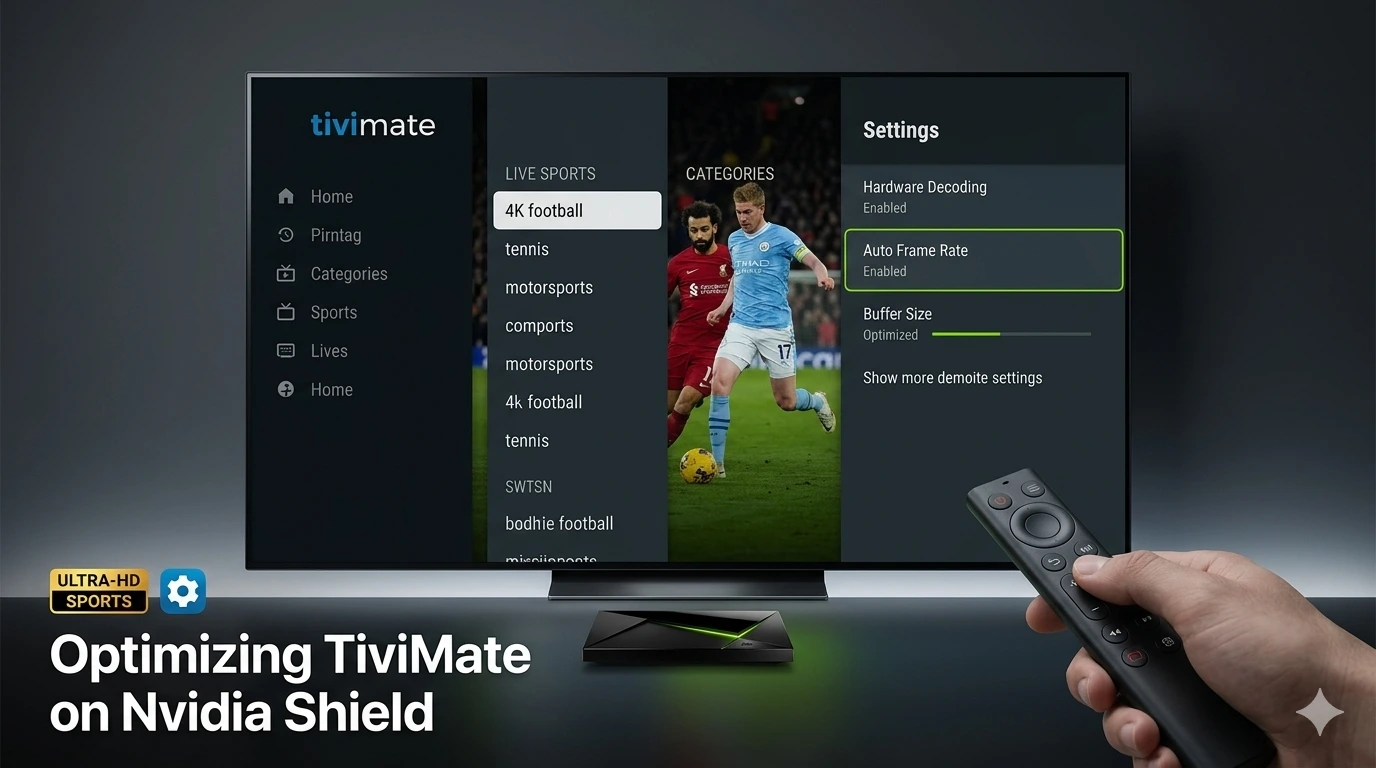
- Hardware Decoding: This is non-negotiable. Ensure it is set to “Hardware.” This offloads the video processing from the Shield’s CPU to its dedicated GPU, drastically reducing heat and potential stutter.
- Auto Frame Rate (AFR): Live sports are usually broadcast at 50fps or 60fps. If your TV settings don’t match this, you will experience “judder.” Enabling AFR allows the Shield to communicate with your TV and match the refresh rate to the stream, ensuring a smooth, cinematic motion.
- Buffer Settings: If you have high-speed fiber internet, set your buffer to “None” or “Small.” If your connection fluctuates, “Medium” is the sweet spot. Setting it to “Large” on a fast connection can actually cause lag because the app is waiting for too much data before playing.
- Audio Passthrough: If you are using a dedicated soundbar or AV receiver, ensure Passthrough is enabled to allow your system to handle Dolby/DTS tracks natively.
4. Advanced Network Optimization
Hardware is only half the battle. Your network path determines the quality of your stream.
- Hardwire Everything: If you want 4K sports without compromise, use a Cat6 Ethernet cable. Wi-Fi is susceptible to interference from neighbors and other home devices.
- DNS Settings: Sometimes, your ISP deliberately throttles streaming traffic. Changing your Shield’s DNS to
1.1.1.1(Cloudflare) or8.8.8.8(Google) can help bypass these restrictions and stabilize your connection. - Ping Testing: Use the TiviMate internal information overlay to monitor your bitrate. If you see it dipping below 10Mbps during a 4K broadcast, your network or your provider’s server is struggling.
5. Leveraging AI Upscaling for Sports
Navigate to Settings > Device Preferences > Display & Sound > AI Upscaling. Select “AI-Enhanced.” You can then toggle the demo mode to see the side-by-side comparison. For sports, this adds incredible depth to the stadium crowd and sharpness to the players’ movements. Note that this feature is exclusive to the Shield and is the primary reason it remains the preferred device for serious IPTV users in 2026.
6. The “Missing Link”: Choosing the Best IPTV for TiviMate
Even the best-configured Nvidia Shield will fail if the server providing the stream is congested. We often see users blame their device for buffering when the reality is that their provider lacks the necessary CDN architecture.
High-bitrate streams require a provider capable of handling massive spikes in traffic during major sporting events. This is where services like getxtreamiptv.com distinguish themselves. They utilize robust, stable server clusters designed specifically for high-bandwidth delivery. When your Shield is perfectly optimized and paired with a high-bitrate provider, the result is a television experience that rivals traditional cable or satellite.
7. Conclusion
Optimizing your setup is a journey of technical refinement. By focusing on your Nvidia Shield’s display settings, TiviMate’s playback architecture, and your network stability, you are ensuring that your home entertainment system performs at its peak. Do not let subpar server quality be the weak link in your high-end setup; invest in stable, high-performance streaming services to complete the picture.
20 Frequently Asked Questions (FAQ)
- Q: Does TiviMate work better on Nvidia Shield than Firestick? A: Yes, due to superior processing power and stable Ethernet support on the Shield.
- Q: What is the best buffer size for live sports? A: Usually “Medium” or “None” if you have a high-speed stable connection.
- Q: Why does my stream stutter on Nvidia Shield? A: Check your network or consider that your IPTV provider lacks the necessary CDN bandwidth.
- Q: How do I enable hardware decoding in TiviMate? A: Settings > Playback > Decoder > Hardware.
- Q: Does AI Upscaling improve 4K sports? A: AI Upscaling is best for 1080p/720p content to make it look near-4K.
- Q: Should I use a VPN for IPTV on Shield? A: Only if your ISP throttles streaming traffic.
- Q: How do I clear the TiviMate cache? A: Android Settings > Apps > TiviMate > Clear Cache.
- Q: Can I use M3U links on the Shield? A: Yes, but Xtream Codes API is much faster and more reliable.
- Q: Why are my channels missing logos? A: This is an EPG mapping issue; ensure your EPG source is valid.
- Q: Is Nvidia Shield worth the price for 2026? A: For dedicated IPTV/Sports users, it is the best investment in the market.
- Q: How to fix audio sync issues? A: Use the “Audio Sync” adjustment in the TiviMate playback menu.
- Q: What is the best IPTV for TiviMate? A: A provider that offers low latency and high bitrate, like getxtreamiptv.com.
- Q: Can Shield handle Multi-view for 4 streams? A: Yes, easily, provided your internet connection is 100Mbps+.
- Q: How to get the best picture quality? A: Match your Shield output resolution to 3840×2160 at 60Hz.
- Q: How often should I update the TiviMate guide? A: Set it to update automatically every 24 hours.
- Q: Does the Shield overheat with long streaming? A: It’s well-ventilated, but keep it in an open area.
- Q: Can I record sports on TiviMate? A: Yes, ensure you have an external drive formatted for the Shield.
- Q: Why does the channel list take long to load? A: Too many channels; filter your categories to only those you watch.
- Q: Is Ethernet always better than Wi-Fi? A: For 4K live sports, Ethernet is non-negotiable for stability.
- Q: Where to find a reliable IPTV server for Shield? A: Look for providers that focus on high-bitrate streaming for 4K devices, such as getxtreamiptv.com.
Leave a Reply