Table of Contents
The landscape of home entertainment has undergone a massive paradigm shift. Gone are the days when families willingly paid exorbitant monthly fees to traditional cable and satellite companies for rigid channel packages, bulky physical hardware, and messy coaxial cables running through the living room. Modern cord-cutting has evolved into a sophisticated, software-driven ecosystem where viewers demand complete control over their viewing schedules, crisp high-definition resolutions, and minimal visual clutter.
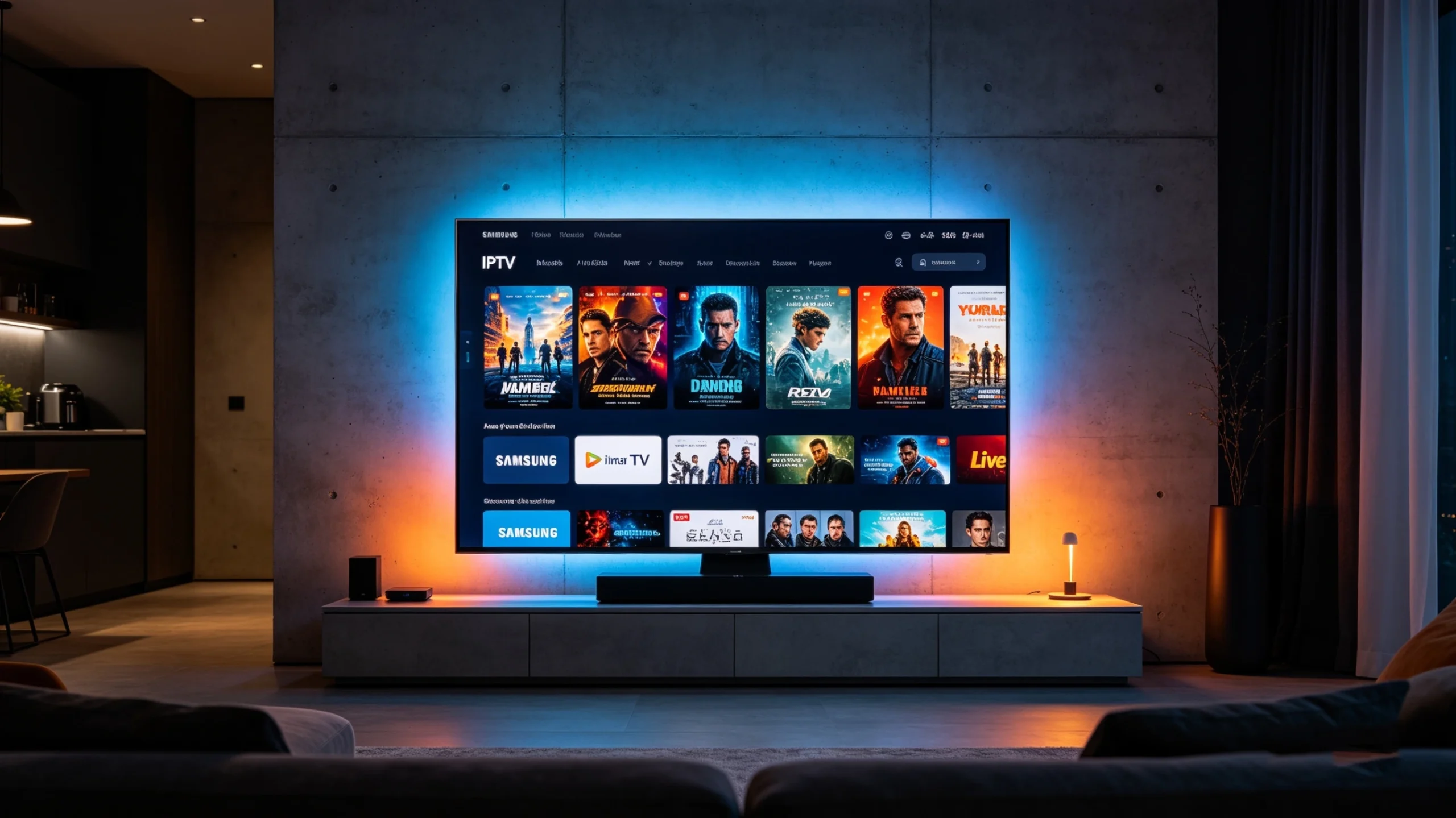
When you purchase a high-end television like a Samsung Smart TV, you are investing in a spectacular panel known for its industry-leading color accuracy, rich contrast levels, and deep black reproduction. However, a brilliant screen is only as good as the software driving the entertainment. If you have ever attempted to venture into the world of live internet-based television on a Samsung display, you have likely run into roadblocks. Because Samsung utilizes its own custom operating system, configuring a reliable media stream can feel incredibly confusing.
That is where IPTV Smarters comes in. Widely regarded as one of the most stable, reliable, and user-friendly digital media players in the world, this application bridges the gap between raw data feeds and a high-end, premium living room experience.
In this ultimate guide, we will walk you through everything you need to know to complete a flawless samsung tv iptv setup using iptv smarters. We will explore the technical mechanics behind why this configuration works so well, provide an explicit step-by-step installation walkthrough, dive deep into advanced settings optimization, and ensure you have all the tools necessary to banish buffering from your screen forever. Grab your remote control, and let’s turn your Samsung TV into an absolute entertainment powerhouse.
Understanding the Architecture: Why IPTV Smarters on Samsung TV is a Game Changer
To set up your system like an expert, it helps to understand exactly what happens beneath the screen when you launch a live stream. Many users mistakenly believe that downloading a video player app automatically gives them access to television channels. In reality, modern internet-based streaming relies on a clear division between two elements: the software engine (the app running on your TV) and the media server infrastructure (the backbone that delivers the video data).
+-----------------------------------------------------------------------+
|                    MODERN STREAMING DISCONNECT                        |
+-----------------------------------------------------------------------+
|  [ MEDIA ENGINE / APPLICATION ]  ----->  Reads & Decodes the Stream   |
|  (e.g., IPTV Smarters UI Shell)                                       |
|                                                                       |
|  [ MEDIA SERVER INFRASTRUCTURE ] ----->  Houses & Delivers the Data   |
|  (The Content Database / Server)                                      |
+-----------------------------------------------------------------------+
Tizen OS App Ecosystem Dynamics: Apps as Specialized Media Containers
Samsung Smart TVs do not run on Android. They operate on Tizen OS, a Linux-based, highly secure platform custom-built by Samsung to maximize their hardware’s processing efficiency. Unlike Android platforms, which give apps deep access to system resources, Tizen OS forces applications to operate inside isolated software containers.
This means that a poorly coded application will quickly run out of memory, leading to frame drops, user interface lag, and sudden app crashes. IPTV Smarters stands out because its engine is fully optimized for Tizen’s specific processing rules. It acts as an incredibly lightweight container that leaves your TV’s main processing cores free to do what they do best: apply real-time upscaling, manage HDR color profiles, and maintain smooth motion tracking.
The Shift from Clunky M3U Text Files to Dynamic Database APIs
In the early days of digital streaming, users loaded data using standard M3U playlist files. An M3U file is essentially a massive text document containing tens of thousands of plain text lines. When your TV tries to parse a raw file like that, it has to download the entire document into its temporary system memory, look through every single line to find a channel, and manually link up the corresponding guide data. For a smart TV processor, this is an incredibly heavy workload that frequently causes the app to freeze.
IPTV Smarters solves this by prioritizing the Xtream Codes API database framework. Instead of downloading a massive, unorganized text document, an API framework establishes a smart, two-way conversation between your TV and the media database.
When you select a category—such as US News or Live Sports—the app only requests the specific data points needed for that screen. This keeps your system memory clean, speeds up channel load times, and ensures your electronic program guide updates instantly without locking up your television’s interface.
+-----------------------------------------------------------------------+
|                    M3U PLAYLIST VS. XTREAM CODES API                  |
+-----------------------------------------------------------------------+
|  OLD METHOD: M3U PLAYLIST STRING                                      |
|  [TV MEMORY] <--- Loads Massive 50,000+ Line Text File (Prone to Lag) |
|                                                                       |
|  MODERN METHOD: XTREAM CODES API DIRECT ACCESS                        |
|  [TV MEMORY] <---> Requests ONLY Selected Category Folders (Instant)  |
+-----------------------------------------------------------------------+
By ensuring a proper samsung tv iptv setup using iptv smarters, you bypass the limitations of old media configurations. You are provisioning a modern, dynamic database that scales seamlessly, providing a clean, lag-free user experience whether you are managing 500 local channels or a massive library of 50,000 international assets.
Preparing Your Home Network and Television for High-Bitrate Feeds
Before you download any software, you must ensure your underlying physical infrastructure can handle high-bitrate live video data. A live television broadcast is fundamentally different from watching a pre-recorded movie on a service like Netflix or Amazon Prime Video.
The Live Streaming Reality: Platforms like Netflix can cache and pre-buffer several minutes of a movie in the background while you watch. Live media broadcasts, however, happen in true real-time. If your network drops data packets for even a fraction of a second, the player engine instantly runs out of visual data, resulting in a frozen screen or an endless buffering wheel.
Bandwidth Requirements for 4K and Ultra-HD Live Broadcasts
To enjoy a crystal-clear, high-definition broadcast without visual artifacts or downscaling, you need to understand your network’s true performance metrics. While a standard internet speed test gives you a general idea of your bandwidth, those results can be highly misleading. A standard speed test measures your network’s capacity by downloading a single large file over a short window. It does not measure your network’s ability to maintain a continuous, uninterrupted stream over several hours.
+-----------------------------------------------------------------------+
|                 TRUE NETWORK STABILITY RECOGNITION                   |
+-----------------------------------------------------------------------+
|  * LATENCY:   The time required for a data packet to travel to the    |
|               server and back. Must be under 50ms for smooth feeds.   |
|  * JITTER:    The variance in packet arrival times. High jitter       |
|               causes sudden, unexpected buffering cycles.              |
|  * PACKET LOSS: The percentage of data lost during transmission. Even |
|               a 1% loss causes visual decoding artifacts.             |
+-----------------------------------------------------------------------+
For standard high-definition (1080p) streams at 60 frames per second, you need a stable downstream speed of at least 25 Mbps dedicated solely to the TV. For premium, uncompressed 4K Ultra-HD live broadcasts, that requirement jumps to a minimum of 50 Mbps.
Wi-Fi vs. Ethernet: Making the Right Physical Connection
While modern Wi-Fi standards like Wi-Fi 6 and Wi-Fi 6E offer incredible theoretical speeds, they are highly susceptible to local environmental interference. Household appliances, thick drywall, decorative mirrors, and competing wireless signals from your neighbors’ routers can cause micro-drops in your wireless connection. These drops are invisible when you browse the web, but they will instantly disrupt a live high-bitrate video stream.
Whenever possible, connect your Samsung Smart TV directly to your home router using a physical Cat6 Ethernet cable. A hardwired connection completely eliminates wireless interference, minimizes local latency, and provides a clear path for data packets.
+-----------------------------------------------------------------------+
|                       THE PHYSICAL ROUTING ORDER                      |
+-----------------------------------------------------------------------+
|  [ROUTER] ===(Physical Cat6 LAN Cable)===> [SAMSUNG TV RJ45 PORT]    |
|                                                                       |
|  * Bypasses All Local RF Interference                                 |
|  * Locks Down Latency to Single-Digit Milliseconds                    |
|  * Provides Continuous Uninterrupted Data Delivery                    |
+-----------------------------------------------------------------------+
If your home layout makes a direct cable run impossible, consider using a high-quality pair of Powerline Ethernet adapters. These devices utilize your home’s existing copper electrical wiring to transmit internet data, giving you the stability of a physical wired connection without needing to run long cables across your floors.
Step-by-Step: How to Install IPTV Smarters Pro on Samsung Smart TV
Now that your home network is optimized, let’s look at the actual installation process. Because app store listing rules change over time, finding the app can occasionally confuse users. Follow these explicit configuration steps to install the software safely and securely.
Accessing the Official Samsung Smart Hub Environment
Your primary gateway to installing software on Tizen OS is the Samsung Smart Hub dashboard.
- Turn on your television and press the Home button (the icon shaped like a house) on your smart remote control. This opens the quick-access navigation ribbon at the bottom of your screen.
- Navigate left along the ribbon until you highlight the Apps icon, then press the center select button to enter the main app store directory.
- Look at the top right corner of the screen. Ensure you see your personal user profile icon, which indicates your Samsung Account is actively logged in. If you are not logged in, you must sign in or create a free account; otherwise, Samsung’s security protocols will prevent you from downloading third-party applications.
+-----------------------------------------------------------------------+
|                    SAMSUNG APPS HUB NAVIGATION PATH                   |
+-----------------------------------------------------------------------+
|  [HOME BUTTON] -> [APPS ICON] -> [SEARCH GLASS] -> Type: "Smarters"   |
+-----------------------------------------------------------------------+
Finding the Right Application Version: Smarters Player Lite Samsung TV vs. Pro
When you open the search function (the magnifying glass icon) in the app store and type in “Smarters,” you might notice that the application is listed under a slightly different name depending on your region and your TV’s manufacturing year.
In many modern regional app stores, the application is listed officially as Smarters Player Lite. Do not worry if you don’t see the word “Pro”—the development team rebranded the application container for smart TV platforms to comply with updated store guidelines. The internal streaming engine, security features, and interface options remain identical to the premium Pro version used on Android platforms.
Executing the IPTV Smarters Samsung TV Download Process
With the correct app container highlighted on your screen, execute the installation sequence:
- Click the center select button on the Smarters Player Lite / IPTV Smarters application tile to open its official description page.
- Review the basic application parameters to ensure your built-in storage has sufficient space (the app requires very little space, typically under 50 megabytes).
- Click the prominent Install or Download button displayed on the screen. The Tizen engine will securely download the app package from Samsung’s cloud servers and install it automatically in the background.
- Once the installation finishes, do not click open just yet. Instead, highlight the option labeled Add to Home and click select. This pins the application shortcut widget directly to your main Smart Hub navigation ribbon. Now, you can launch your streaming setup instantly without having to dig through the deep system menus every time.
Configuring Your Content Connection Parameters
With the software container successfully installed on your Samsung TV, the next phase is configuring your connection data. To input your information without errors, you need to understand exactly what your access credentials represent.
Demystifying M3U Playlists vs. Xtream Codes API Infrastructure
When you look at your account paperwork from your chosen broadcast service, your credentials will typically be provided in two formats. Let’s look at what each format looks like under the hood so you know exactly which options to select during setup.
The Legacy M3U String Format
This is a long, continuous web address that groups all your server validation codes into a single line. It typically follows this syntax structure:
$$\text{[http://premium-server.link:8080/get.php?auth=user789](http://premium-server.link:8080/get.php?auth=user789)\&pass=secure456\&output=ts}$$
While this format works, typing a long string of random characters with a standard TV remote control button layout is incredibly tedious and highly prone to typos.
The Modern Xtream Codes API Database Framework
This layout breaks that long string down into three clean, easily manageable pieces of database information:
- The Base Server URL (Host):
[http://premium-server.link:8080](http://premium-server.link:8080) - The Account Username:
user789 - The Account Password:
secure456
Choosing the Xtream Codes API option is the absolute best practice for a samsung tv iptv setup using iptv smarters. It provides clean category sorting, faster loading times, and automatic electronic program guide mapping.
Gathering Your Core Streaming Database Credentials
Locate the automated welcome email sent to you when your account was activated. Copy these details into a notepad file or keep your phone nearby so you can refer to them during the manual input phase on your television screen.
The Secret Behind Zero-Buffer Home Entertainment
It is incredibly common to see users spend hours testing different applications, reconfiguring their home networks, and adjusting advanced TV processing menus to fix persistent video buffering. However, you must remember that an application is simply an empty glass—the quality of the drink depends entirely on what you pour into it.
Even the most optimized software will drop frames, stutter, and freeze if the underlying data feed originates from an overloaded, low-tier server framework.
+-----------------------------------------------------------------------+
|                    THE ENTERTAINMENT BALANCE EQUATION                 |
+-----------------------------------------------------------------------+
|   [ LIGHTWEIGHT APPLICATION ]  +  [ RAW, HIGH-BITRATE BACKBONE ]      |
|     (Smarters Player Lite)        (getxtreamiptv.com Infrastructure)  |
|                                                                       |
|              =  THE ULTIMATE BUFFER-FREE 4K EXPERIENCE                |
+-----------------------------------------------------------------------+
Many budget services cut corners by heavily compressing their live video feeds, which leads to noticeable motion artifacting and pixelation during fast-moving sports broadcasts. Furthermore, these providers often squeeze too many users onto underpowered servers, causing widespread stream dropouts during major global live events.
If you want to experience what your high-end Samsung panel is truly capable of, you need to pair your new software setup with an uncompressed, high-bitrate, and highly stable data feed. For those who want to test these app settings with a high-bitrate, stable server, [check out the resources at getxtreamiptv.com].
Complete Walkthrough: Executing the Samsung TV IPTV Setup Using IPTV Smarters
Now, let’s go step-by-step through the process of linking your credentials to the app interface on your television. Follow these steps exactly to complete the initialization process without any errors.
Step 1: Initializing the Interface and Setting Terms of Service
- Navigate to your Samsung home ribbon, highlight the IPTV Smarters / Smarters Player Lite icon, and click select to launch the application.
- On the initial startup screen, the app will ask you to read and accept their global End User License Agreement (EULA). Scroll down through the text and click the Accept or Agree button.
- The next screen will ask you to select your primary device layout type. Since you are installing this on a television panel rather than a mobile device, choose the TV / Box option, then click save.
+-----------------------------------------------------------------------+
|                     CHOOSE LOGIN METHOD VIEW                         |
+-----------------------------------------------------------------------+
|  [ Option 1: Load Your Playlist or File / URL ]                      |
|  [ Option 2: LOGIN WITH XTREAM CODES API ]  <--- (CHOOSE THIS)        |
+-----------------------------------------------------------------------+
Step 2: Inputting Your Xtream Codes Database Credentials
The screen will now display several login methods. Highlight the option labeled Login with Xtream Codes API and select it. This opens a clean text input form containing four separate entry fields:
+-----------------------------------------------------------------------+
|                     XTREAM CODES API INPUT TEMPLATE                   |
+-----------------------------------------------------------------------+
|  1. ANY NAME:     [ My Premium Server                     ]           |
|  2. USERNAME:     [ Type Your Account Username Here        ]           |
|  3. PASSWORD:     [ Type Your Account Password Here        ]           |
|  4. PORT / URL:   [ http://server-link.com:8080           ]           |
|                                                                       |
|                       [ ADD USER BUTTON ]                             |
+-----------------------------------------------------------------------+
- Any Name: This field is purely an internal label for your user profile. Type whatever you like here, such as
Living Room Premium Live. - Username: Enter the exact alphanumeric username provided by your broadcast service. Remember that this field is strictly case-sensitive.
- Password: Enter your account password. Double-check your spelling, making sure you don’t confuse the number
0with the letterO, or the number1with an uppercaseI. - Host URL: Enter the base server web path, including the specific communication port number at the very end (e.g.,
:8080or:2095). Always include the initialhttp://prefix unless your provider explicitly instructs you to omit it.
Once you have verified all four fields are correct, navigate down to the large button labeled Add User and click it.
Step 3: Downloading and Parsing the Live Channels Database
If your input credentials match the server’s authentication rules perfectly, the application container will successfully connect to your host provider’s backend database. You will see a loading screen with progress bars as the app imports your channel categories.
+-----------------------------------------------------------------------+
|                      DATA INGESTION STAGE                             |
+-----------------------------------------------------------------------+
|  [ Downloading Channels ]  ===> Ingesting Live Streams...             |
|  [ Downloading Movies ]    ===> Caching Video on Demand...            |
|  [ Downloading Series ]    ===> Parsing TV Show Databases...          |
+-----------------------------------------------------------------------+
During this initial ingestion phase, the application reads the structural layout of your content package and creates a local index file inside your TV’s temporary flash memory. Do not press any buttons on your remote control or turn off your television while these bars are loading. Interrupting this process can corrupt the index file, which will force you to delete your user profile and type your credentials all over again.
Step 4: Loading and Syncing Your Electronic Program Guide (EPG)
Once the main database ingestion is complete, you will be taken directly to the primary user interface dashboard, which is divided into three main sections: Live TV, Movies, and Series.
+-----------------------------------------------------------------------+
|                        PRIMARY SMARTERS DASHBOARD                     |
+-----------------------------------------------------------------------+
|   [ LIVE TV ]             [ MOVIES ]              [ SERIES ]          |
|                                                                       |
|   (Install EPG Data) <--- (CLICK THIS SHORTCUT FIRST TO SYNC GUIDE)   |
+-----------------------------------------------------------------------+
Before you open any live channels, look directly underneath the three main category tiles for a text button labeled Install EPG or a circular syncing icon. Click this option immediately.
This sends a command to the host database to fetch the current programming timetables, episode descriptions, and network schedules. Once this synchronization loop completes, your live channel menus will display accurate, up-to-date program information just like a traditional cable box.
Deep-Dive: Advanced Customization Features Inside IPTV Smarters
One of the reasons IPTV Smarters is so highly regarded is its extensive custom settings menu. The default out-of-the-box settings are designed for broad device compatibility, but you can unlock a significantly smoother, sharper experience by adjusting a few advanced options.
Optimizing the Built-In Video Player Engine for Fluid Motion
To access the app’s advanced customization options, click the gear icon in the top right corner of the primary dashboard to open the Settings menu.
+-----------------------------------------------------------------------+
|                     ADVANCED PLAYER CONTROL TRACK                     |
+-----------------------------------------------------------------------+
|  [SETTINGS] -> [PLAYER SETTINGS] -> [BUILT-IN PLAYER OPTIMIZATION]    |
|                                                                       |
|  * Set Primary Buffer Level to: "Native Hardware Adaptive"            |
|  * Enable Stream Format Pass-Through: "TS Engine Active"              |
+-----------------------------------------------------------------------+
Navigate into the Player Settings sub-menu. Here, you will find options that control how the app handles incoming video data packets. Look for an option labeled Hardware Decoding or Native Hardware Player. Ensure this is enabled.
By prioritizing hardware decoding, the application instructs the Tizen operating system to send incoming video streams directly to your TV’s dedicated physical graphics chip. This ensures fast channel zapping times, eliminates micro-stuttering on high-frame-rate sports channels, and keeps your TV running cool.
Setting Up Parental Controls and Category Filtering
If your subscription includes international packages, sports packages, and thousands of video-on-demand assets, the sheer volume of content can feel overwhelming. You can easily clean up your interface using the built-in filtering tools:
- Parental Controls: Navigate to Settings > Parental Control and set up a secure 4-digit PIN number. Once active, you can lock out entire adult categories, premium movie channels, or specific international regions. Locked categories will be hidden from the main menu, keeping your interface family-friendly.
- Managing Categories: Inside the main live television menus, you can press and hold the center select button on any channel or category to add it to your Favorites folder. This creates a custom category folder right at the very top of your channel guide, allowing you to access your most-watched channels instantly without scrolling through thousands of international options.
Managing Multiple Playlists for Ultimate Redundancy
Experienced cord-cutters often use multiple data sources to ensure they never miss a big game or a major live news broadcast. IPTV Smarters allows you to manage multiple active server profiles simultaneously.
To add a secondary backup stream, simply click the user icon or navigate to the profile management screen from the main dashboard. Click Add User and input your secondary credentials using the same Xtream Codes API process. You can switch between completely different server backbones with just a few clicks of your remote control, ensuring your entertainment system is always up and running.
Troubleshooting Common Setup Bottlenecks and Errors on Tizen OS
Even with a top-tier smart TV and an optimized network, you may occasionally run into minor software bugs or configuration issues. Here is how to diagnose and fix the most common issues on Tizen OS like a seasoned pro.
Resolving the Dreaded “Invalid Details” or Login Failure Error
The most common issue users encounter during initial setup is a login failure message. If you click the “Add User” button and receive a prompt stating the system cannot connect, check these common culprits:
+-----------------------------------------------------------------------+
|                    LOGIN ERROR DIAGNOSTIC TRACK                       |
+-----------------------------------------------------------------------+
|  * Check for Hidden Trailing Spaces at the End of Entry Lines         |
|  * Verify Character Case-Sensitivity (Lowercase "l" vs. Number "1")  |
|  * Confirm Port Numbers Match Exactly (:8080 vs. :2095 Paths)         |
+-----------------------------------------------------------------------+
- Trailing Spaces: When using your smart TV’s on-screen keyboard, clicking an autocomplete suggestion will often insert an extra space at the very end of your username or password string. The server will read this space as an extra character, causing the authentication process to fail. Go back into your input lines and ensure the text cursor sits directly against the final letter of your input.
- Port Number Errors: Many servers require a specific port number to communicate through network firewalls. Ensure your Host URL includes the matching port suffix (such as
:8080or:2095) exactly as specified by your provider.
Fixing Missing EPG Data or Blank TV Guide Screens
If your channel lines display the phrase “No Information Available” across every channel, your local guide database has likely failed to sync properly:
- Navigate to the app’s Settings menu and select the EPG Timeline / Refresh EPG option.
- Click the button labeled Clear EPG / Delete Guide Data. This safely flushes out any corrupted database files from your TV’s temporary storage cache.
- Click Refresh EPG Data to force a fresh download loop directly from your host provider’s server. Keep the application open for a few minutes while the database maps the updated programming information across your channel list.
Troubleshooting Audio/Video Desync and Black Screen Playback
If you open a live channel and hear the audio track perfectly but see nothing but a black screen, your television’s graphics processing engine is struggling to decode the stream’s default video format.
To resolve this format conflict, navigate to Settings > Stream Format inside the application menus. Toggle the format option from its default state to M3U8 or TS (Transport Stream).
+-----------------------------------------------------------------------+
|                    STREAM FORMAT SELECTION MATRIX                     |
+-----------------------------------------------------------------------+
|  * TS FORMAT:   Best for Live Television (Fast Zapping & Stable Sync) |
|  * M3U8 FORMAT: Best for Video on Demand (Smooth Rewind & Fast Forward)|
+-----------------------------------------------------------------------+
Live channels run best on the compressed TS format, while on-demand movies are more stable on M3U8 pathways. Forcing the stream to pass through the correct format engine will instantly resolve most audio/video desync issues and playback glitches.
Deep Architectural Comparison: IPTV Smarters vs. Alternate Tizen Solutions
To help you choose the best option for your entertainment setup, let’s look at how IPTV Smarters stacks up against other major media players available in the Samsung Tizen store.
| App Selection | Interface Style | Configuration Path | Memory Usage | EPG Performance | Standout Feature |
| IPTV Smarters | Premium Cable Hub | Direct App API Login | Very Low | Excellent / Auto-Sync | Clean category sorting for live TV & VOD |
| Smart IPTV (SIPTV) | Utilitarian Text | External Web Portal | Extremely Low | Basic Grid | Incredibly fast channel zapping times |
| Net IPTV | Minimalist Row View | External Web Portal | Low | Medium Grid | Resilient container for large channel lists |
| Nanomid Player | Modern / Abstract | Direct App Interface | Medium | Fast / Cloud Sync | Built-in tracking filters & aspect tools |
While apps like Smart IPTV and Net IPTV offer lightweight text-based alternatives, they lack the rich metadata options, automatic guide syncing, and clean visual layouts that make IPTV Smarters look and feel like a premium cable box.
Frequently Asked Questions (FAQ)
Do I need to sideload a custom .apk file using a USB drive on my Samsung television?
No. You do not need any complex technical workarounds or USB flash drives to install this software. IPTV Smarters (listed under its official name as Smarters Player Lite) is available as a native download right inside the official Samsung App Store.
Is IPTV Smarters fully free to run on Tizen OS platforms indefinitely?
Yes. The core software container is 100% free to download and use for standard live TV viewing without any forced subscription plans or recurring fees. Some advanced cosmetic features or multi-screen layouts may require a one-time premium unlock fee, but standard single-stream configurations are completely free.
What is the primary operational difference between Smarters Pro and Smarters Player Lite?
The underlying code architecture, database processing engine, and login menus are identical. The developer simply used the “Lite” branding in certain smart TV app stores to meet strict platform guidelines regarding third-party media players.
How often should I clean out the application data cache memory on my Samsung Smart TV?
As a best practice, clear out your application’s data cache once every three to four months. This flushes out old, expired guide data from your TV’s storage, ensuring your menus load quickly and prevent system crashes.
Can I use a VPN alongside IPTV Smarters directly inside my Samsung TV menu?
Samsung’s Tizen OS does not support native VPN applications out of the box. If your local internet service provider throttles video streaming data packets, you cannot install a VPN app directly onto the TV menu. Instead, you must configure a secure VPN directly at the router level, or connect your TV to a specialized VPN-enabled hardware hotspot.
Conclusion: Unleash the Full Power of Your Television Setup
Completing a proper samsung tv iptv setup using iptv smarters is one of the most efficient, cost-effective ways to cut the cord without sacrificing a premium user experience. By choosing a native Tizen OS application that is optimized for your television’s hardware, you transform your screen into a powerful entertainment hub that rivals any expensive traditional cable box setup.
You now have all the tools necessary to locate the software in the Samsung store, connect your account credentials using a fast Xtream Codes API database pathway, optimize your video playback engines, and troubleshoot any common network bottlenecks.
However, always remember that an app is simply an empty frame—the quality of your entertainment depends entirely on the signal you feed into it. To enjoy true, buffer-free entertainment with flawless audio/video sync and uncompressed 4K resolution, you need to pair your new software setup with a premium, high-bitrate data feed.
Stop dealing with low-tier servers, pixelated channels, and endless buffering loops. Elevate your home viewing setup today, unlock the full potential of your Samsung panel, and get your premium streaming experience running flawlessly by visiting [getxtreamiptv.com].
Leave a Reply