Table of Contents
Are you tired of your streams lagging during peak hours? While many users blame their service provider, the culprit is often your own network configuration. If you want to improve IPTV streaming speed and eliminate stuttering, you need to optimize your home network.
In this guide, we reveal the top 5 network settings to boost your performance and ensure a seamless 4K experience.
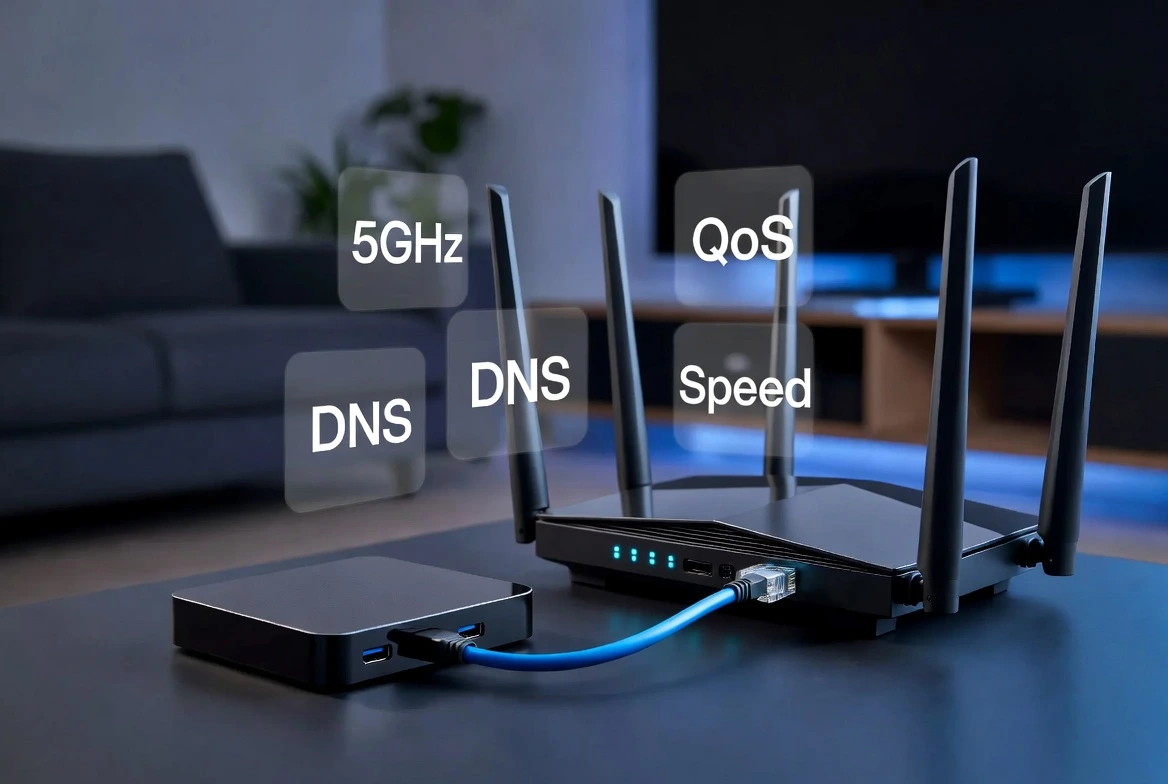
1. Switch to a 5GHz Wi-Fi Band
Most routers broadcast two signals: 2.4GHz and 5GHz. The 2.4GHz band is crowded and slow, while the 5GHz band is faster and less prone to interference. Always ensure your streaming device is connected to the 5GHz network for the best throughput.
2. Change Your DNS Servers
Your ISP’s default DNS can often be slow, causing delays in loading streams. Switching to faster, public DNS providers like Cloudflare (1.1.1.1) or Google (8.8.8.8) can reduce latency and significantly improve IPTV streaming speed.
3. Enable QoS (Quality of Service)
Most modern routers have a feature called QoS (Quality of Service). By enabling this, you can prioritize traffic for your streaming device. This ensures that even if other people in your house are browsing or gaming, your IPTV stream gets the bandwidth it needs first.
4. Use a Wired Ethernet Connection
There is no “setting” better than a cable. Wi-Fi signals degrade through walls and floors. If you want a truly stable connection, connect your Firestick or Android Box directly to your router using a Cat6 Ethernet cable.
5. Optimize Your Router Channel
If you must use Wi-Fi, ensure your router is using the least congested channel. You can use a “Wi-Fi Analyzer” app on your phone to see which channels your neighbors are using and switch yours to a quieter frequency.
Conclusion
Improving your streaming experience doesn’t always require expensive hardware. By applying these network tweaks, you can improve IPTV streaming speed and achieve the stability you need for 4K content.
Don’t forget to check our list of the [Best IPTV Services 2026] for providers that handle high-bitrate streaming with ease.
Frequently Asked Questions (FAQ)
Q: Will changing DNS really make my internet faster? A: It won’t increase your raw download speed, but it reduces the “request time,” which makes your stream start faster and reduces buffering at the beginning of a channel.
Q: What is the best router setting for IPTV? A: Enabling QoS and prioritizing your streaming device is the single most effective router-side fix for stable IPTV.
Q: Can I use Ethernet on a Firestick? A: Yes, you can use an OTG cable adapter to add an Ethernet port to your Firestick, which is highly recommended for 4K streaming.
Q: How do I know if my Wi-Fi channel is congested? A: Download any free “Wi-Fi Analyzer” app from your app store; it will show you a graph of all nearby networks and help you pick the least crowded channel.
Leave a Reply