Table of Contents
The world of home entertainment has evolved dramatically. Gone are the days when we were tethered to clunky cable boxes, expensive satellite dishes, and rigid broadcast schedules. Today, your Samsung Smart TV is a powerhouse capable of delivering thousands of live channels, on-demand movies, and global sports directly over the internet.
If you own a Samsung television, you are sitting on one of the most visually stunning displays on the market. However, a display is only as good as the software running on it. To truly unlock its potential, you need the right application layer.
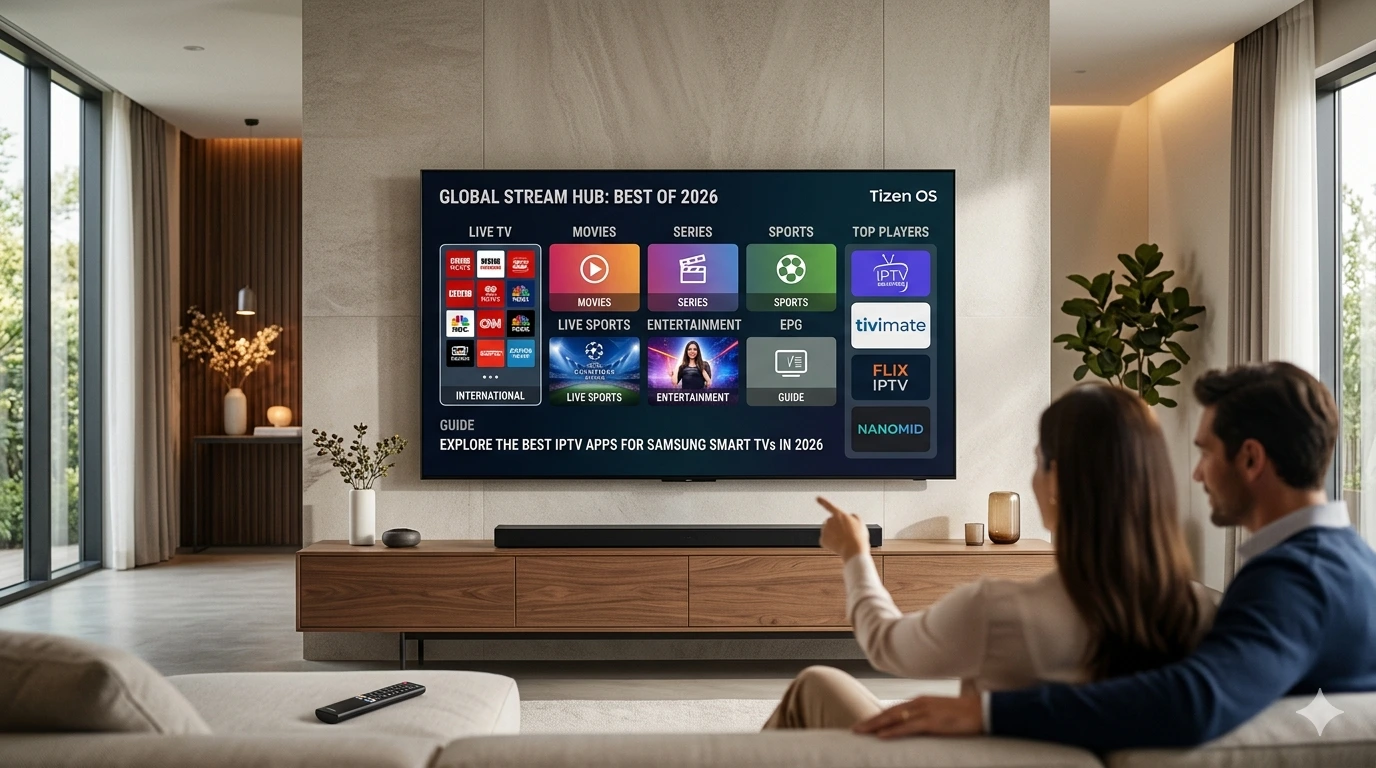
Finding the Best IPTV Apps for Samsung Smart TVs in 2026 can feel like navigating a minefield of technical jargon, broken playlists, and shifting app store availability. Whether you are a cord-cutting veteran or a beginner looking to ditch traditional cable, this guide will walk you through the top options, break down the technical setup step-by-step, and show you exactly how to transform your living room into a global media hub.
Introduction to the 2026 IPTV Landscape on Tizen OS
As we move through 2026, the streaming ecosystem has become highly sophisticated. IPTV (Internet Protocol Television) has shifted from a niche tech hobby to a mainstream streaming methodology. But streaming on a Samsung ecosystem comes with its own unique set of parameters that you need to understand before diving in.
Why Your Samsung Smart TV Needs a Dedicated IPTV Player
A common misconception is that buying an IPTV subscription gives you an instant “app” on your TV. In reality, IPTV functions exactly like email. Your IPTV provider gives you the “messages” (the video channels and streams), but you need an “email client” (the IPTV player app) to read, organize, and display them.
A dedicated IPTV Player for Samsung TV serves as your user interface. It takes raw text data—like M3U links and electronic program guides (EPG)—and translates them into a beautiful, interactive digital dashboard. Without a high-quality player, you won’t be able to easily flip channels, search for your favorite shows, organize parental controls, or enjoy smooth, lag-free playback.
Understanding Tizen OS and App Compatibility Changes in 2026
Samsung televisions do not run on Android TV or Google TV. Instead, they use Samsung’s proprietary operating system called Tizen OS.
In 2026, Tizen OS has introduced stricter security frameworks and updated its web engine architecture. This means older, unmaintained IPTV applications have been systematically removed from the official Samsung App Store. The modern Tizen ecosystem demands apps that are optimized for RAM efficiency, support advanced hardware decoding, and handle massive, high-definition playlists without crashing.
Choosing a modern, actively updated IPTV App for Tizen OS ensures that your application won’t suddenly vanish or stop working after a system software update.
What is an IPTV Player vs. an IPTV Service? (Clearing the Confusion)
Before downloading any software, let’s clear up the single biggest source of confusion for new streamers: the difference between a player application and a streaming service.
+------------------------------------------------------------+
|                       YOUR HARDWARE                        |
|                  Samsung Smart TV (Tizen OS)               |
+------------------------------+-----------------------------+
                               |
                               v
+------------------------------------------------------------+
|                        IPTV PLAYER                         |
|   (The Engine/UI: IPTV Smarters, TiviMate, Net IPTV, etc.)  |
+------------------------------+-----------------------------+
                               |
                               v
+------------------------------------------------------------+
|                        IPTV SERVICE                        |
|       (The Content/Data: M3U Playlists, Xtream Codes)      |
+------------------------------------------------------------+
The Legalities and Mechanics of IPTV Streaming
An IPTV player is 100% legal. These applications contain zero content, zero channels, and zero pre-configured playlists. They are empty media shells, much like VLC Media Player or Windows Media Player. You, the user, must supply the content source.
The legality of your setup depends entirely on the IPTV Services for Samsung TV that you connect to the player. Legitimate services deliver streams that they own or have licensed the rights to broadcast. Always ensure you are using reputable sources to keep your streaming experience safe and legal.
M3U URLs, Xtream Codes APIs, and Portal Addresses Explained
When you acquire an IPTV stream package, your provider will typically give you your credentials in one of three formats:
- M3U Playlist URL: A long web link that points to a text file. This file contains the names of the channels, their category groupings, and the specific web addresses where the video streams live.
- Xtream Codes API: A modern, much cleaner method. Instead of a massive URL, you are given three simple pieces of information: a Base Server URL, a Username, and a Password. This allows the app to dynamically fetch channels and update your guide automatically.
- MAC/Portal Address: Used primarily by legacy MAG boxes and specific heavyweight apps. You provide the app’s unique hardware MAC address to your provider, and they link it to an interactive web portal.
For the absolute best stability, faster loading times, and a rich Electronic Program Guide, Xtream Codes API is the gold standard for Samsung Smart TV IPTV Apps in 2026.
Deep-Dive Reviews: The Best IPTV Apps for Samsung Smart TVs in 2026
Let’s look at the absolute best options currently available in the Samsung App Store or via secure sideloading methods. These apps have been rigorously tested for layout navigation speed, video decoding stability, and overall user experience on modern Samsung panels.
1. IPTV Smarters Pro (The King of Customization)
If you have ever dipped your toes into the world of internet television, you have likely heard of IPTV Smarters Pro. It remains an industry titan for a reason: it is incredibly versatile and pairs flawlessly with Samsung TV IPTV Streaming Apps requirements.
Key Features & User Interface
IPTV Smarters Pro features a dashboard-driven user interface that divides your media into distinct categories: Live TV, Movies, Series, and Catch-Up. The 2026 version for Tizen OS brings a refreshed, dark-themed layout that looks phenomenal on QLED and Neo QLED displays. It supports multi-screen layouts (allowing you to watch up to four channels simultaneously—perfect for sports Sundays) and features an integrated Master Search tool that scans your entire live and on-demand library at once.
Pros, Cons, and Pricing
- Pros: Highly intuitive UI; native support for Xtream Codes API and M3U playlists; excellent subtitle rendering and audio track switching; parent control locks.
- Cons: The free version contains visual banner ads; can feel slightly heavy on older Samsung TV models (pre-2022).
- Pricing: Free basic tier; one-time premium unlock fee (~$10) for advanced features like multi-screen and custom player integration.
2. TiviMate IPTV Player (The Premium Standard)
Long considered the holy grail of IPTV players on Android, TiviMate has made massive waves with its tailored solutions for premium television ecosystems. It is widely considered the Best IPTV Player Samsung Smart TV owners can deploy if they want an experience that mimics a high-end satellite receiver.
Why It’s the Best IPTV Player Samsung Smart TV Users Crave
TiviMate’s crowning achievement is its Electronic Program Guide (EPG). It is insanely fast, infinitely scrollable, and completely customizable. You can create custom channel groups, hide channels you don’t watch, assign custom logos, and view past program data for catch-up services. The visual aesthetics are clean, minimalist, and completely devoid of tacky banner elements.
Set-Up Complexity and Performance Benchmarks
Because TiviMate treats playlists as live databases, its initial synchronization might take a few moments longer than lightweight applications. However, once loaded, channel switching times (zapping) are virtually instantaneous, often clocking in under 0.5 seconds when paired with a robust stream.
For those who want to test these high-performance settings with a high-bitrate, stable server, [check out the resources at getxtreamiptv.com] to experience what zero-lag zapping feels like on a premium layout.
3. Net IPTV (The Lightweight Speed Demon)
If you own an entry-level Samsung TV or an older model whose processor struggles with heavy graphics, Net IPTV is your saving grace. It strips away the unnecessary clutter to focus purely on efficient, rapid stream processing.
Activating Your MAC Address on Tizen OS
Net IPTV does not use standard login credentials within the TV app itself. Instead, when you launch the app, it displays a unique hardware identifier known as a MAC Address (e.g., AA:BB:CC:11:22:33). You then navigate to their official web portal via your phone or laptop, input your TV’s MAC address, and paste your M3U link there. The portal pushes the playlist directly to your Samsung TV over the cloud.
Performance and Format Support
Because the playlist processing happens externally, the app itself launches instantly and consumes almost no system memory. It supports all standard video codecs used in modern broadcasting, including H.264, H.265 (HEVC), and MPEG-4. The interface is clean, relying on a straightforward list view that makes navigation simple for less tech-savvy family members.
4. SET IPTV (The Robust Mid-Tier Contender)
SET IPTV bridges the gap between the ultra-lightweight architecture of Net IPTV and the feature-rich ecosystem of IPTV Smarters. It is a highly stable, dependable utility that has become a staple of the Tizen App Store.
Interface Walkthrough & Code Engine
Similar to Net IPTV, SET IPTV utilizes an external MAC address upload portal, keeping your television free from tedious on-screen keyboard typing. What sets it apart is its updated video playback engine. In 2026, the developers integrated an advanced hardware-acceleration toggle designed specifically for Samsung’s Quantum Processors. This engine dynamically allocates memory to buffer video packets ahead of time, drastically reducing the occurrence of micro-stutters during high-motion scenes like live football or action films.
Mid-Article Insights & Strategy Breakdown
Streamer’s Note: Selecting the ideal player application is only half of the equation. Even the most polished, expensive app will buffer, freeze, or drop frames continuously if it is fed by a low-tier, oversold streaming network. To complement your player with an enterprise-grade, high-bitrate backbone that features a 99.9% uptime guarantee, ensure you are pulling your streams from premier infrastructure. Discover how to upgrade your backend feed by reviewing the deployment guides at getxtreamiptv.com.
5. SS IPTV (The Best Free IPTV Apps for Samsung TV Option)
For budget-conscious cord-cutters, SS IPTV (Simple Smart IPTV) remains one of the few completely free, unrestricted options natively supported on many Samsung platforms.
Zero-Cost Playlist Integration
SS IPTV is completely free—there are no activation fees, no premium subscriptions, and no locked features. You can upload multiple playlists simultaneously via their web portal or add them manually on your screen. While the user interface looks a bit retro compared to modern applications like TiviMate, it is highly functional. It supports parental control configurations, internal time-shifting (pause live TV if your provider supports it), and automated EPG matching based on channel names.
6. Smart IPTV (SIPTV) (The Classic Pioneer)
Smart IPTV is the grandfather of all Samsung Smart TV IPTV Apps. It was one of the very first dedicated IPTV applications to land on Tizen OS years ago, and it maintains a massive, loyal user base to this day.
Is it Still Worth It in 2026?
Smart IPTV uses the classic tiled interface where channels are displayed in numerical grids. It is incredibly stable because it hasn’t changed its core programming language radically over the years. However, its classic nature is also its main drawback: it lacks modern visual flair, doesn’t natively support video-on-demand (VOD) posters or movie plot summaries very well, and is strictly designed for live TV channels. It requires a one-time activation fee of roughly €5.49 after a 7-day trial. If you just want a reliable grid of live TV channels without any extra fluff, it is still a fantastic choice.
7. Flix IPTV (The Modern Minimalist)
Flix IPTV is a highly polished, visually striking application that looks like a premium streaming platform such as Netflix or Disney+.
Video Engine Performance & Subtitle Rendering
Flix IPTV stands out due to its universal player compatibility. It easily parses heavy 4K streams and offers beautiful, highly legible subtitle styling options—allowing you to adjust the font size, color, and background tracking layout directly from your remote control. It also includes an internal cache-clearing tool that allows you to purge stored data with a single click, keeping your Tizen system operating at peak velocity. It operates on a one-time activation model per device.
8. Nanomid Player (The Security-Focused Choice)
Nanomid is a premium, cutting-edge option that has gained massive traction due to its extreme emphasis on protocol security and advanced media control.
Built-in Parental Controls & VPN Passthrough
Beyond its elegant, fluid UI, Nanomid features built-in security protocols designed to circumvent simple firewall blocks. It supports secure HTTP protocols, handles complex tracking structures natively, and features a robust internal parental control system that allows you to encrypt entire category trees behind custom alphanumeric pins. If your IPTV provider delivers diverse global content, Nanomid renders the international character sets and guide text perfectly without formatting errors.
Comprehensive Comparison Matrix: Premium IPTV Apps for Samsung TV
To help you decide at a glance, here is a detailed breakdown comparing the performance, price, and primary ingestion methods of the top options for your Samsung television.
| Application Name | Interface Style | Playlist Input Method | Cost / Pricing Structure | Ideal For |
| IPTV Smarters Pro | Modern Dashboard | Xtream Codes / M3U | Free (Ad-supported) / $10 Premium | Users who love a rich layout with deep VOD categorization |
| TiviMate IPTV Player | Cable Box Guide | Xtream Codes / M3U | Free Basic / Annual & Lifetime Sub | Enthusiasts who want a fast, authentic EPG grid experience |
| Net IPTV | Minimalist List | External MAC Address | ~€5.79 One-Time Lifetime | Older Samsung TVs or entry-level processors |
| SET IPTV | Clean Layout | External MAC Address | ~€5.69 One-Time Lifetime | Sports fans looking for smooth hardware-acceleration |
| SS IPTV | Utility Grid | Manual / Web Code | 100% Free | Users looking for a solid, zero-cost streaming platform |
| Smart IPTV | Classic Tiles | External MAC Address | ~€5.49 One-Time Lifetime | Traditionalists who just want live channels with zero distractions |
| Flix IPTV | VOD Cinematic | External MAC Address | ~€7.49 One-Time Lifetime | Cinephiles who value clean subtitles and high-res posters |
| Nanomid Player | Cutting-Edge Ultra | External MAC Address | ~€9.99 One-Time Lifetime | Security-conscious streamers tracking massive playlists |
Step-by-Step Installation Guide: How to Install an IPTV App for Tizen OS
Installing an IPTV App for Tizen OS is usually straightforward, but because Samsung frequently updates regional store availability, you may need a workaround. Here are the two primary deployment methods.
Method 1: Installing Directly via the Official Samsung App Store
If your chosen app is fully licensed and available in your region, this is the easiest method.
1.Power on and Access the Hub :Prerequisite: Active internet connection.
Turn on your Samsung Smart TV and press the Home button on your Smart Remote to bring up the main smart hub launcher ribbon.
2.Open the Apps Portal :Navigating Tizen core.
Scroll to the left on the menu ribbon and select the Apps icon (represented by four small squares). This launches the official Samsung App Store.
3.Execute the Search :Targeting your player.
Navigate to the top-right corner of the screen and select the Magnifying Glass (Search) icon. Type in the name of the app you want to install, such as IPTV Smarters Pro or Net IPTV.
4.Download and Install :System compilation.
Select the application from the search results to open its product page. Click the Install or Download button. The Tizen OS will automatically download, extract, and install the application files directly onto your TV’s internal flash storage.
5.Pin to Home Screen :Accessibility layout.
Once installed, select the Add to Home option. This pins the application shortcut icon directly to your primary launch bar, saving you from navigating deep menus every time you want to stream.
Method 2: Sideloading via USB Developer Mode (For Missing Apps)
If an application like IPTV Smarters Pro or Smart IPTV does not appear in your regional Samsung App Store due to geographic distribution restrictions, you can manually sideload it using an external flash drive.
+-------------------+      Download Tizen App Files      +-----------------+
|   Laptop/PC       | =================================> |  USB Flash Drive|
+-------------------+                                    +-----------------+
                                                                  |
                                                                  | Plug into TV
                                                                  v
+-------------------+       Auto-Detect & Sideload       +-----------------+
| Samsung Smart TV  | <================================= |  USB Open Port  |
+-------------------+                                    +-----------------+
- Prepare the USB Drive: Take a standard USB flash drive and format it to FAT32 on your computer.
- Download the Official Tizen Application Files: Obtain the verified
.wgt(Tizen application package) or extracted userwidget folder for the specific app from the developer’s official website. - Structure the Files: Create a folder in the root directory of your USB drive named exactly
userwidget. Extract all the application zip files directly inside thisuserwidgetfolder. - Enable TV Developer Mode (If Required): On your Samsung TV, navigate to
Settings->Smart Hub->App Settings->Developer Mode. Turn the toggle to ON and enter Samsung’s standard developer pin:12345. Input your computer’s local IP address if requested. - Inject the Hardware: Turn your Samsung TV completely OFF. Insert the prepared USB drive into one of the open USB ports on the back or side of your TV panel.
- Boot and Autoload: Turn your TV back on. The Tizen operating system will automatically detect the
userwidgetdirectory on the USB drive, display an “Installing custom app” notification banner at the top of the screen, and add the player directly to your app directory. Note: Keep the USB drive plugged into the TV to run the application if it runs as an external volume asset.
How to Configure and Optimize Your IPTV Player for Samsung TV
Once your application is installed and open on your screen, it’s time to program the software engine. Let’s look at how to properly load your credentials and tweak hidden settings to achieve perfect playback quality.
How to Inject M3U Playlists and Xtream Codes
If you are using an app that utilizes an external MAC address portal (like Net IPTV or SET IPTV), open the app to find your MAC Address. Grab your smartphone, go to the app’s respective upload website (e.g., netiptv.eu or setiptv.com), type in your MAC address, paste your provider’s M3U URL link into the slot, and click Save/Upload. Restart the app on your TV, and the entire database will populate.
If you are using an app like IPTV Smarters Pro that supports direct login via Xtream Codes API, follow these parameters:
- Any Name: Enter anything you like (e.g., “My Premium Stream”).
- Username: Type the unique username given by your service provider.
- Password: Type your account password.
- Server URL: Enter the exact web address and port number provided (e.g.,
[http://line.providerurl.com:8080](http://line.providerurl.com:8080)).
Click Add User, and the player will connect to the remote servers to download your customized live lists and on-demand indexing directories.
Optimizing Buffer Sizes for 4K and 8K HDR Streams
Buffering occurs when your TV’s processor runs out of video data frames to display before the next batch arrives over the internet. To stop this from happening on premium high-definition streams, navigate to your player app’s Advanced/Playback Settings menu and look for Buffer Size or Cache Storage.
Standard Stream Setup (Low Cache) - Vulnerable to network drops:
[Incoming Data] ---> [ Small Cache (0.5s) ] ---> [ Screen Display ]

Optimized Stream Setup (High Cache) - Protected against network drops:
[Incoming Data] ---> [======= Large Cache (4.0s) =======] ---> [ Screen Display ]
By default, many apps set the buffer time to 0 or 1 second to make channel changes feel faster. If you experience stutters, manually increase the buffer setting to 3 Seconds or 5 Seconds. This instructs your Samsung TV to store a few seconds of video in its RAM before playing it, creating a buffer zone that easily absorbs temporary blips in internet speed.
Setting Up EPG (Electronic Program Guide) for Seamless Browsing
An IPTV app without an Electronic Program Guide is just a blind list of numbers and names. To get full TV guide grids, complete with show summaries, episode numbers, and progress tracking bars, ensure your provider gives you an EPG URL (usually ending in an .xml or .xml.gz file extension).
In your app settings, navigate to EPG Source or Manage EPG. Paste the XML link there and set the synchronization schedule to Refresh Daily. This ensures that every time you sit down to watch TV, your guide information is perfectly accurate and synchronized with global broadcast time zones.
Troubleshooting Common Samsung TV IPTV Streaming Apps Issues
Even with the highest-tier setup, digital streaming networks can occasionally run into speed bumps. Here is how to fix the most common technical glitches yourself without needing to call an expensive IT professional.
How to Fix Buffering, Freezing, and Stuttering
If your video stream freezes constantly, work through this troubleshooting checklist:
- Ditch the Wi-Fi: Modern home Wi-Fi networks suffer from structural interference (walls, microwaves, smart home devices). Connect an Ethernet Cable (Cat5e or Cat6) directly from your internet router into the LAN port on the back of your Samsung TV. Hardwired connections offer completely stable, unwavering bandwidth.
- Toggle Hardware Decoding: Go to your player app’s settings menu and look for Video Decoder options. Switch between Hardware (HW) Decoding and Software (SW) Decoding. Samsung’s physical chips perform best on HW decoding, but certain unique stream formats run smoother on SW decoding.
- Power Cycle Your Hardware: Unplug your Samsung TV and your home router completely from the wall outlet. Wait 60 full seconds. Plug the router back in first, wait for all its green status lights to steady, then power your TV back on. This clears out corrupt temporary caches and forces a clean DNS resolution.
Solving the “Playlist Failed to Load” Error
If you launch your application and receive an error message stating “Playlist Error,” “Failed to Connect,” or an empty screen, the cause usually comes down to one of two things:
- Typographical Error: Double-check every single character of your login credentials. M3U links and server APIs are highly case-sensitive and must not contain any accidental blank spaces. Even one misplaced period or lowercase letter will break the connection completely.
- Expired Account: Log into your IPTV service dashboard on your phone or check your email to ensure your subscription package hasn’t expired or run out of authorized concurrent streaming slots.
Overcoming ISP Throttling and Regional Blocks
Have you ever noticed your streams run flawlessly in the morning, but start buffering constantly during major live sporting events or peak evening hours? This is a classic symptom of ISP Throttling. Internet Service Providers often track massive influxes of data streaming from known media servers and intentionally slow down your speeds to preserve their network capacity.
To bypass this restriction, you need to obscure your web data packet signatures. Because Tizen OS does not natively support running full-scale VPN applications directly from the Samsung App Store, the easiest solution is to set up a secure VPN network directly on your main home router, or share an encrypted connection from a PC or a hardware Smart VPN router box. This encrypts your data traffic, preventing your ISP from monitoring what you are watching and allowing your stream to pass through completely unhindered.
Security, Privacy, and VPN Configuration on Samsung Smart TVs
As digital streaming infrastructure scales up globally, protecting your privacy online has become more important than ever. When you use any streaming application, your home IP address, general physical location, and web activity patterns are exposed to your local network route logs.
To protect your digital footprint on a Tizen OS television:
- Utilize Smart DNS Proxies: Many premium VPN services offer a feature called “Smart DNS.” You navigate to your Samsung TV’s native
Network Settings->IP Settings->DNS Server, change it from automatic to manual, and enter your VPN provider’s specific custom server IP address. This reroutes your location data without requiring an heavy, full-scale app installation on the TV. - Check App Permissions: Within your Samsung settings dashboard, periodically review app access logs to ensure your media tools aren’t accessing background permissions they don’t need. Keep your applications updated to ensure you always have the latest security patches.
Frequently Asked Questions (FAQs)
Can I get an IPTV app for free on my Samsung TV?
Yes! Applications like SS IPTV are completely free to download and use without any activation fees. However, remember that free apps do not contain any actual TV channels. You will still need to acquire a valid playlist or account feed from an authorized provider to load into the app.
Why did IPTV Smarters disappear from my Samsung App Store?
Samsung regularly updates its Tizen OS application library to meet strict local compliance, copyright frameworks, and security parameters. If an app disappears from your region’s app store, you can still install and run it perfectly by switching your TV’s internal store region code or by manually sideloading the app using a USB flash drive as detailed in our installation guide above.
Do these apps work on all Samsung Smart TVs?
These applications work on all modern Samsung Smart TVs running Tizen OS (manufactured from 2015 onward). If you own an exceptionally old Samsung set running the legacy Orsay architecture, these modern apps won’t be compatible, and you will want to use an external streaming stick like a Firestick or an Android TV box plugged into an HDMI port.
Can I record live television using these apps on a Samsung TV?
Recording capabilities depend entirely on the specific application’s design limitations and your Tizen system hardware. While Android apps like TiviMate support direct recording to external hard drives, Tizen OS restricts background app file storage. To reliably record live broadcasts, you will typically want to look for an IPTV service that offers built-in Catch-Up (VOD-style recording logs) directly on their servers.
Conclusion & Final Verdict: Choosing Your Perfect Setup
Transforming your Samsung Smart TV into a global entertainment hub is all about finding the right balance between user-friendly software and a robust streaming source.
If you want a modern, highly categorized dashboard that handles movies, series, and live TV beautifully, IPTV Smarters Pro remains an absolute must-have. For viewers who prefer the traditional, lightning-fast channel grid layout of high-end satellite boxes, investing a few minutes to configure TiviMate will deliver an incredible viewing experience. If your television is an older model or has a slower processor, lean toward lightweight options like Net IPTV or SET IPTV to ensure smooth, lag-free navigation.
Ultimately, your streaming experience will only be as stable as the engine driving it. A beautiful application is meaningless if it’s connected to an unreliable, buffering feed. For a truly premium entertainment experience, pair your new player with a high-bitrate, stable, and highly secure stream infrastructure. Ready to unlock the full potential of your home theater system? [Head over to getxtreamiptv.com to discover high-bitrate streaming packages] and start enjoying flawless 4K entertainment on your Samsung Smart TV today!
Leave a Reply