Table of Contents
Finding a reliable, highly versatile, and genuinely user-friendly media engine to manage your live media entertainment setup can feel like an overwhelming task. The modern cord-cutting landscape is flooded with dozens of poorly coded, ad-riddled, and laggy media player skins that constantly crash when forced to handle extensive data libraries. Amidst this chaotic sea of software options, one specific software application has maintained an absolute stronghold on the global streaming market: IPTV Smarters Pro.
But does this legendary player still deserve its massive crown today, or has it succumbed to software bloat and security challenges? In this definitive, completely updated iptv smarter pro app review, we are going to dive deep beneath the marketing claims to analyze the application’s true performance metrics, cross-platform capabilities, hidden settings menus, and troubleshooting steps.
Whether you are a seasoned server administrator or a newcomer trying to figure out how to configure your first live media channel list on a television screen, this comprehensive evaluation will give you the precise insights you need to build an flawless home theater experience.
Introduction to the Smarters Ecosystem
To understand why this application is installed on tens of millions of devices worldwide, you must first understand the fundamental structural model of the modern live streaming ecosystem.
What is IPTV Smarters Pro and Why Does It Dominate the Streaming Market?
Developed by WHMCS Smarters, IPTV Smarters Pro is a highly advanced, user-facing media client designed to decode, organize, and render live digital media streams, video-on-demand (VOD) movie libraries, and catch-up television packages.
Its dominance stems from a brilliant user interface strategy: instead of presenting the user with an uninspiring, difficult-to-navigate vertical text file full of random links, it transforms raw data into a fully interactive dashboard that rivals the visual polish of modern streaming services like Netflix, Hulu, or premium satellite TV boxes.
The Structural Reality: An Empty Shell Media Engine
A critical point that trips up many beginners is that the application does not provide any media content whatsoever. When you perform a standard IPTV Smarters Pro download from any digital storefront, you are receiving an empty, highly advanced software framework. It has no built-in TV stations, sports packages, or pre-loaded movies.
To actually watch a single minute of television, you must supply your own independent streaming credentials—such as an M3U playlist file link or secure Xtream Codes API database login tokens.
Defining the Objectives of This Definitive IPTV Smarters Pro App Review
The core goal of this deep-dive review is to evaluate the application’s performance across modern hardware platforms, test its stability under heavy processing loads, outline optimal configurations for pristine video delivery, and provide a clear troubleshooting guide for common runtime errors. We will examine the software from both an ease-of-use and technical engineering standpoint so you can make an informed choice for your home media setup.
Platform Compatibility & Cross-Device Availability
One of the greatest competitive advantages of the Smarters ecosystem is its extensive multi-platform availability. While many competing media players are locked entirely to specific Android operating system forks, Smarters has systematically deployed native software builds across virtually every major consumer electronics operating system.
Mobile Ecosystems: Setting Up Android and iOS
For mobile users who want to take their favorite television channels on the road, the app runs smoothly on both primary mobile operating systems:
- iptv smarters pro android: Available as a highly optimized package for smartphones and tablets, the Android version features full touchscreen navigation support and allows users to select custom internal video decoders to preserve battery health on mobile processors.
- iptv smarters pro apple: Available via the official iOS and iPadOS App Store (often listed under alternative branding variants like Smarters Player Lite due to shifting developer store policies), this iteration is written using Apple’s native rendering tools, resulting in exceptionally smooth scrolling animations and efficient power consumption profiles on iPhones and iPads.
Television Platforms: Optimizing Android TV & Fire OS Layouts
Live streaming truly shines when experienced on a large living room television panel. The iptv smarters pro android tv application is custom-tailored for 10-foot user interfaces (interfaces designed specifically for viewing from a couch).
The app features full directional-pad remote control support, allowing you to flip channels instantly, open picture-in-picture sub-screens, and view extensive television guide grids without ever needing a mouse or touchscreen interface. It functions perfectly across Amazon Fire TV Sticks, Google TV Chromecast devices, Nvidia Shield consoles, and smart TVs powered by Sony, Hisense, and TCL.
Desktop Clients: Installing Windows and macOS Builds
Unlike most mobile-centric streaming wrappers, the developer provides robust standalone desktop software packages. Running IPTV Smarters Pro Windows or macOS builds allows you to watch high-definition live feeds on your computer monitor without needing to run heavy, laggy Android emulator software in the background. The desktop client features native keyboard shortcuts, customizable window scaling, and an optimized multi-screen layout engine that makes excellent use of desktop graphics cards.
Lightweight Computing: Running Chromebook Configurations
If you own a modern ChromeOS device, you can easily deploy an iptv smarters pro chromebook configuration. Because modern Chromebooks feature built-in sub-systems capable of executing Android applications natively, you can install the mobile version of the app directly from the Google Play Store wrapper on ChromeOS. This setup provides a responsive, lightweight, mouse-compatible streaming center that works perfectly on portable laptops and education-tier hardware.
Step-by-Step Safest Installation Directory
Because streaming applications operate in a highly dynamic digital landscape with frequent storefront policy updates, downloading your software from verified, secure sources is paramount to protecting your local network from malware.
Official Paths: Downloading via the Google Play Store and Apple App Store
Whenever possible, you should always source your software packages directly from the official developer channels:
- Open the official IPTV Smarters Pro Play Store link on your Android device or the App Store on your Apple device.
- Click Install or Get to allow the store’s cloud infrastructure to run automated malware sweeps before downloading the application to your storage.
- This official route ensures you automatically receive the latest security updates and core software performance patches directly from the developer without manual intervention.
Sideloading Safeguards: When and How to Use the APKPure Pipeline
In certain scenarios—such as running highly customized Android projector units, managing older hardware models, or navigating temporary regional storefront restrictions—you may find that the app is unavailable on your device’s default store wrapper. In these edge cases, you must manually download and install the raw software file (sideloading).
[ Enable Unknown Sources ] ──► [ Download APK from APKPure ] ──► [ Run Package Installer ] ──► [ Safe Setup Complete ]
When sideloading, utilizing a highly verified, secure web mirror repository like iptv smarters pro apkpure is critical. Avoid downloading random APK installation files from unverified online public forums or shady file-sharing links, as these packages are frequently injected with malicious background script injections that can turn your streaming stick into a botnet node. Once downloaded from a trusted mirror, open your device’s file manager application, grant the necessary system file permissions, and run the package installer to safely initialize the software.
Initial Setup and Onboarding Checklist for First-Time Users
When you launch the software for the very first time, the application will prompt you to read and accept their global terms of service agreement. Once accepted, you will arrive at the master user onboarding dashboard, which presents you with three distinct login methods:
- Load Your Playlist or File/URL: Used for inputting long, traditional M3U playlist text strings.
- Login with Xtream Codes API: The single fastest, cleanest, and most modern data connection path.
- Login with Stalker Portal: Used for legacy servers that lock authentication tokens directly to your streaming stick’s virtual hardware MAC address footprint.
Core Features & Interface Evaluation
To give you an honest iptv smarter pro app review, we must thoroughly evaluate how the application holds up during daily, intensive media consumption across various layout menus.
Live TV, Movies, and TV Series Split-Dashboard
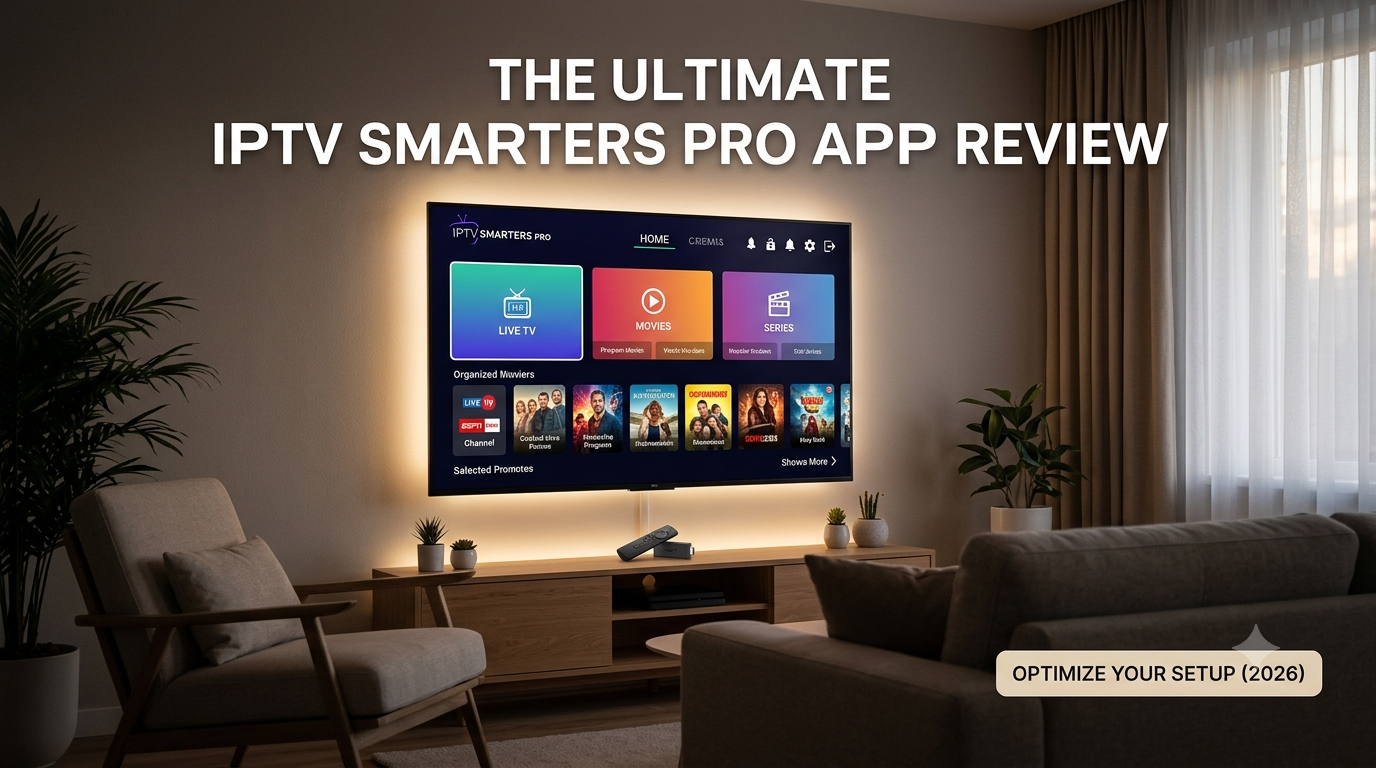
The central home screen design of Smarters Pro is one of its greatest design achievements. Instead of lumping every media item into a single, chaotic directory file, it splits your incoming provider database into three clean, visually distinct master categories:
| Dashboard Category | Visual Presentation | Key Mechanics |
| Live TV | Interactive EPG Grid layout | Real-time preview windows, channel zapping sorting |
| Movies | Netflix-style grid arrangement | High-resolution poster art fetching, IMDB rating synchronization |
| Series | Categorized folder hierarchy | Episode tracking, season breakdown menus, auto-play next episode toggles |
This split-dashboard design keeps your media library exceptionally clean and easy to navigate for every member of the family.
Multi-Screen Mode: Managing Multiple Feeds at Once
For passionate sports fans or news junkies, the app’s premium multi-screen engine is an absolute game-changer. This feature allows you to divide your television screen into a dynamic grid containing two, three, or four unique live channel blocks simultaneously.
You can watch four distinct live football matches or breaking news events on a single screen, using your remote control’s directional pad to instantly toggle the active audio stream between the visual windows.
Master Search Integration & Parental Control Mechanics
As playlists grow to house tens of thousands of international channels, finding a specific broadcast can feel like hunting for a needle in a haystack. The built-in Master Search bar parses your entire database instantly as you type, pulling up matching live networks, movies, and series episodes in a single, unified search results view.
Furthermore, if you have children at home, you can access the robust Parental Control panel to lock adult categories, international blocks, or specific channel groups behind a secure 4-digit PIN master password.
Advanced Optimization: The Best IPTV Smarters Pro Settings
Many users download this application, input their login details, and leave everything on default settings. However, to unlock true high-frame-rate performance and eliminate annoying playback hitches, you should make a few specific performance tweaks within the system configuration panel.
Video Engine Tuning: Selecting Built-in Decoders vs. External Media Engine Players
By default, the application relies on its built-in hardware player engine (built on standard Android media frameworks) to process incoming streams. While this works fine for standard definition files, it can occasionally struggle with advanced, high-bitrate 4K streams or specialized audio codecs like Dolby Atmos.
If you notice your screen freezing while the audio track continues playing in the background, navigate to Settings > Player Selection. Here, you can change your default video processing player to a highly versatile third-party application like VLC Media Player or MX Player (which must be installed separately on your device). These external players handle complex video containers and encoding formats significantly better, instantly eliminating frame drops and decoder conflicts.
Finding Perfection: The Best Stream Format (HLS vs. TS)
Inside the advanced settings panel under Settings > Stream Format, the application allows you to choose how video packets are delivered to your hardware. You can select either MPEG-TS (Transport Stream) or HLS (HTTP Live Streaming).
[ MPEG-TS Format ]  ──►  Best for Live Sports  ──►  Instant Channel Flipping, Zero Audio Lag
[ HLS Link Format ] ──►  Best for Wi-Fi Networks ──► Dynamic Adaptive Bitrate, Absorbs Packet Loss
If your home streaming stick is connected to your internet router via a hardwired Ethernet cable, switch your format profile explicitly to MPEG-TS. This protocol features the absolute lowest data compression rates, making it perfect for crisp, fast-paced live sports broadcasts.
However, if your device is running on an unstable Wi-Fi network that experiences occasional signal drops, lock your setting to HLS. The HLS protocol uses an adaptive bitrate structure that naturally absorbs minor network drops, keeping your stream running smoothly without throwing sudden error screens.
Performance Upgrades: The Best Settings for Eliminating Sluggishness
To achieve the absolute iptv smarters pro best settings profile on your device, apply these three critical tweaks inside your configuration menu:
- Turn Off Animation UI Transitions: Navigate to Settings > General Settings and toggle screen animation transitions to OFF. This drastically reduces background CPU utilization on budget streaming sticks, making menu navigation feel snappy and responsive.
- Lock Player API to Hardware Decoding: Under Settings > Player Settings, verify that your primary video engine decoding structure is explicitly set to Hardware Decode. This hands video processing tasks directly to your device’s physical GPU chip rather than forcing the CPU to handle it via code emulation.
- Optimize the Storage EPG Cache: Go to Settings > Time Format & EPG and set your data refresh interval to Every 24 Hours. This prevents the app from constantly wasting processing power and local storage bandwidth downloading repetitive program logs in the background.
Database Security: Moving Your Custom Configurations
Once you have spent a significant amount of time organizing your favorite channel groups, establishing parental locks, and configuring your ideal player settings, losing that data due to a device failure or a factory reset would be highly frustrating.
Step-by-Step Guide to Backup and Restore Actions
Fortunately, the application features an integrated data management engine that allows you to safeguard your local system database. To perform a successful iptv smarters pro backup and restore run, follow this precise operational sequence:
- Launch the application and enter the primary Settings menu.
- Scroll down until you locate the sub-menu labeled Backup & Restore and click it.
- Select Backup Data. The system will package your login profiles, custom favorite folders, parental control codes, and UI layout settings into a single, compact local configuration file.
- Copy this generated backup file onto an external USB flash drive or upload it to a shared local home network folder (SMB).
- If you ever purchase a new television stick or need to reinstall your software, simply open this menu on the new device, click Restore Data, select your saved configuration file, and your entire custom setup will restore instantly.
Troubleshooting Critical Errors & Crash Codes
Even with an immaculate layout setup, streaming live data packages across remote web servers can occasionally lead to a technical hurdle. Use this diagnostic handbook to resolve application issues quickly without wiping your custom layouts.
Fixing the Dreaded “unfortunately iptv smarters pro has stopped” Crash Loop
This error occurs when the Android operating system encounters a fatal memory error within the application runtime environment, causing the software to instantly shut down.
- The Cause: This is almost always triggered by a severely overloaded system memory cache. When a playlist contains a massive number of channels (e.g., over 60,000 links), the local cache database can grow too large for your streaming stick’s limited RAM to process all at once.
- The Fix: Go to your streaming stick’s main system menu under Settings > Applications > Manage Installed Applications > IPTV Smarters Pro and click Clear Cache. Be absolutely certain you do not click clear data, as doing so will permanently delete your stored playlists and force you to re-input your credentials.
+-------------------------------------------------------------+
|                     AMAZON FIRE OS SETTINGS                 |
+-------------------------------------------------------------+
|  Manage Installed Applications -> IPTV Smarters Pro          |
|                                                             |
|  [ Force Stop ]                                             |
|  [ Clear Cache ]   <─── CLICK THIS TO FIX CRASH LOOPS       |
|  [ Clear Data ]    <─── WARNING: WILL WIPE YOUR PLAYLISTS   |
+-------------------------------------------------------------+
Once the cache memory is cleared, click Force Stop to kill any frozen background processes, and then launch the application again.
Diagnostic Guide: “Why is iptv not working today”
If you open your streaming hub and find a black screen displaying an infinite loading spinner or a generic connection error banner, you need to systematically isolate the problem. To answer the question “why is iptv not working today”, you must determine if the issue lies with your local application player, your home internet connection, or your remote stream provider’s server backend:
- Test Your Home Internet Bandwidth: Launch a standard browser app or a speed test utility directly on your streaming stick to verify your current connection speeds. If your download speeds drop below 25 Mbps, your home network lacks the raw throughput required to maintain a high-definition live stream connection.
- Examine the Provider Server Status: If your internet connection is fast and stable but your channels still refuse to load, the provider’s server may be undergoing routine maintenance or facing a temporary network outage. Try logging into your subscription account portal on your smartphone to check for any service alerts from your administrator.
- Bypass Local ISP Throttling Filters: Many mainstream Internet Service Providers deployment Deep Packet Inspection (DPI) to actively track, identify, and limit sustained high-bandwidth live stream data connections to preserve their overall network limits. Turning on an encrypted Virtual Private Network (VPN) app on your streaming stick completely hides your internet traffic signature from your provider. This instantly bypasses local network blocks and eliminates artificial buffering loops.
Bypassing Authentication Errors and 401 Login Loops
If you are hit with an “Invalid Details” or a “401 Unauthorized” warning banner when attempting to log in, the application successfully made contact with the server, but the host server actively rejected your connection request.
- The Fix: Double-check your login credentials line-by-line. Xtream Codes API server addresses, usernames, and passwords are strictly case-sensitive. A single misplaced capital letter, an extra period, or an accidental space added to the end of a line by your remote’s auto-correct tool will cause the validation handshake to fail.
If your credentials are entry-perfect and the connection still fails, your subscription billing cycle may have expired, or you may have exceeded the maximum allowed number of concurrent streaming devices on your account.
Frequently Asked Questions (FAQ)
Is there a difference between the free download version and the premium layout upgrade?
Yes. The free version of the software provides excellent access to basic single-playlist viewing and standard EPG grid navigation. However, upgrading to the Premium layout unlocks advanced capabilities, including the 4-channel Multi-Screen mode, parental control profiles, master search optimization tools, custom player integration, and the ability to connect and manage unlimited concurrent playlists simultaneously.
How do I fix out-of-sync audio tracks within the native video player window?
If a channel’s audio track lags several seconds behind the live video feed, navigate to Settings > Player Selection and switch your default processing player for that specific category over to an external app like VLC for Android. VLC features a dedicated built-in manual audio delay slider adjustment tool, allowing you to manually shift the audio track forward or backward by milliseconds until it perfectly matches the mouth movements on your screen.
Does IPTV Smarters Pro log user IP address signatures or metadata back to a database?
No. The application functions strictly as a client-side local media interpreter shell engine. It does not own external media hosting servers and does not log, monitor, or store user viewing metrics, IP address signatures, or stream history profiles on central databases. All authentication tokens and playlist paths are stored securely inside your local streaming device’s encrypted system flash storage.
Final Verdict: Is IPTV Smarters Pro Still Worth It in 2026?
After thoroughly testing its capabilities across multiple hardware configurations, optimizing its performance settings, and evaluating its core stability under heavy database processing loads, our final verdict is clear: IPTV Smarters Pro remains an absolute powerhouse in 2026. Its modern dashboard layout, extensive platform compatibility, and advanced feature set (like Multi-Screen mode) make it a top-tier choice for any home theater setup.
While it requires a small amount of initial manual configuration and occasional cache clearing to prevent system memory slowdowns, the sheer value and visual polish it brings to your live streaming setup are undeniable.
Remember, a high-performance player interface is only half of the equation. To truly unlock the potential of your application and experience crisp, buffer-free playback across live sports, international networks, and 4K video-on-demand movies, you must pair your app frontend with an equally robust server infrastructure.
Ready to put your newly optimized player to the test? Move past unstable, heavily compressed feeds that cut out right when a big game gets interesting. Elevate your media center today by exploring the enterprise-grade, high-bitrate streaming packages available right now at [getxtreamiptv.com]. Your ultimate, interruption-free home entertainment setup is just a click away!
Leave a Reply