Table of Contents
If you have made the decision to ditch traditional, over-priced cable television bundles or clunky, ad-ridden streaming apps, you have likely arrived at the ultimate destination for modern cord-cutters: the TiviMate IPTV Player. Visually striking, ultra-fast, and designed explicitly to mimic the luxury layout of high-end satellite boxes, TiviMate completely changes how you interact with live media.
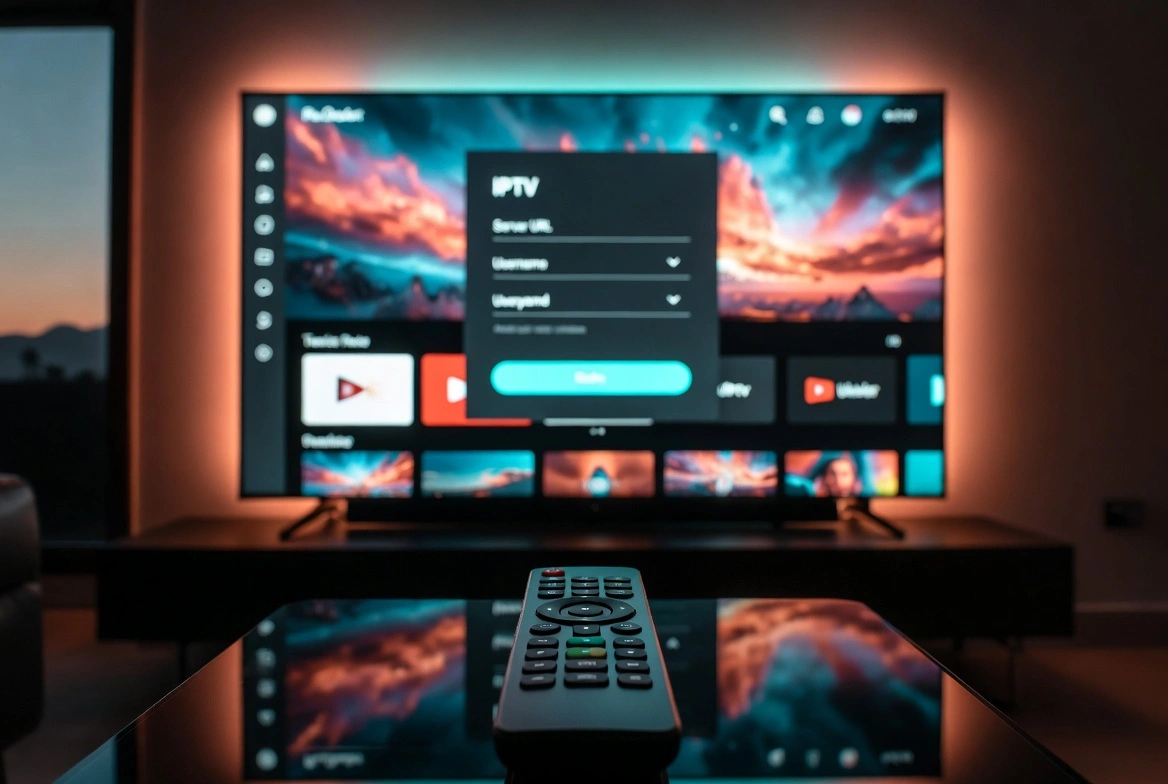
However, when you open the application for the very first time, you are faced with a completely blank canvas. TiviMate is a media engine, not a content provider. It does not contain pre-loaded channels, sports networks, or video-on-demand movies. To watch anything, you must understand exactly how to execute a proper tivimate add playlist sequence.
While connecting a media feed might sound straightforward, a single misplaced letter, an incorrect server port, or an unverified account token will result in frustrating connection errors. In this comprehensive, expert-level deployment manual, we will walk through the exact steps to add your playlists, how to integrate your television guide data, and how to permanently bypass the common errors that trip up most home theater users.
Introduction to TiviMate IPTV Player Ecosystem
To successfully configure your media center, you must understand the underlying relationship between your software player and your digital stream provider.
Why TiviMate is the Best Media Shell for Live Television
Unlike generic apps that struggle with slow menu scrolling, broken stream connections, and low-resolution scaling, TiviMate is custom-built using native Android TV code. It fully accelerates its graphics layer using your streaming stick’s internal GPU. This architectural approach allows the interface to render a complex, live-updating television grid effortlessly, handling massive channel directories containing tens of thousands of unique streams without experiencing a microsecond of system lag.
Understanding the Architecture: The Player vs. The Playlist
Think of TiviMate as a high-end, state-of-the-art physical television set. The data feed you provide represents your cable line or antenna input.
- The Player: TiviMate acts as the user interface, decoding engine, and custom display layout organizer.
- The Playlist: A structured data index file (typically formatted as an M3U text file or parsed through a server API database) that tells the player exactly where to find raw streaming media sources on the internet.
Free vs. Premium: Why Playlist Management Changes at the Premium Tier
The free version of TiviMate serves as an excellent introduction to basic channel surfing, but it enforces a strict limitation: you can only connect one single playlist at a time.
If you want to merge separate live sports networks, international channel bundles, and video-on-demand libraries into one master cable guide, you must upgrade your application layout to TiviMate Premium. A premium account allows you to run unlimited concurrent playlists, cross-reference multiple electronic program guide (EPG) paths, and unlock highly advanced multi-view screen split configurations.
Preparing Your Setup Before You Add a Playlist
Before you begin typing text strings into your television screen, you need to gather your connection documents. Having your credentials properly organized beforehand will prevent major authentication headaches later.
Locating Your IPTV Credentials
When you subscribe to an enterprise-grade digital media network, your system administrator will supply you with one of three distinctive login formats:
- Xtream Codes API Connection Data: This breaks down your access credentials into three separate, clean components: a core Base Server URL address (e.g.,
[http://example-server.xyz:8080](http://example-server.xyz:8080)), a specific Username, and a secure account Password. - M3U Playlist URL String: A long-form web link that houses your entire channel catalog. It looks like a website address but terminates with a
.m3uor.m3u8extension. - Stalker Portal / MAC Address Configuration: A legacy framework where your subscription line is hard-locked directly to your streaming stick’s unique physical virtual hardware MAC address footprint.
The Anatomy of a High-Bitrate, Stable Server Line
It is critical to remember that your software player is completely dependent on the stability of the server backend sending it data packets. When thousands of people log in simultaneously to stream high-profile live sporting events or global pay-per-view broadcasts, low-tier, over-allocated servers run out of bandwidth, causing severe buffering loops and stream drops.
[ Your Provider Server ] ───(High Bitrate/Low Compression)───► [ High-Speed Wi-Fi/Ethernet ] ───► [ Clean TiviMate Playback ]
For those who want to experience instant channel zapping and test these advanced settings with a high-bitrate, stable server that populates instantly without network micro-drops, [check out the premium resources at getxtreamiptv.com]. Ensuring your stream source matches the high engineering standards of your player software is the single most critical step toward an interruption-free viewing experience.
Storage and Hardware Requirements
Because loading a massive, multi-national playlist requires TiviMate to build local index tables, your hardware must have adequate breathing room. If you are using a budget device like an entry-level Amazon Firestick, Walmart Onn box, or an older generic Android TV box, ensure you have at least 200MB of free internal flash storage. This space allows the application to successfully download, parse, and store your local database tables and network channel logos without triggering out-of-memory crashes.
Step-by-Step: How to Add a Playlist on TiviMate
Let’s walk through the exact manual procedure for adding a live television feed to your device. Ensure your remote control battery is fresh, and follow along with these direct instruction blocks.
Phase 1: Booting TiviMate for the First Time
When you launch a fresh installation of the application, the software immediately recognizes that it lacks an underlying data matrix.
- Click on the central button labeled Add Playlist.
- The system will present you with three distinctive structural choices: M3U playlist, Xtream Codes login, or Stalker Portal.
+-----------------------------------------------------+
|                  TIVIMATE SETUP                     |
+-----------------------------------------------------+
|                                                     |
|  Choose your playlist connection type:              |
|                                                     |
|  [ M3U Playlist ]                                   |
|  [ Xtream Codes login ]   <-- RECOMMENDED           |
|  [ Stalker Portal ]                                 |
|                                                     |
+-----------------------------------------------------+
Phase 2: Utilizing the Xtream Codes API Method (Highly Recommended)
Using the Xtream Codes protocol is by far the most reliable way to complete a tivimate add playlist run. It reduces human typing error and structures your on-screen guide significantly cleaner than traditional text links.
- Select Xtream Codes login from the menu directory.
- Click on the line labeled Server Address. A virtual keyboard layout will slide into view.
- Type out your provider’s base path precisely, making sure to include the correct transport protocol prefix (
http://orhttps://) and the exact server port number assigned at the end (e.g.,:8080or:2095). Click Next. - Move down to the Username field and input your unique identification string.
- Select the Password field and type your security key. Double-check your upper-case and lower-case letters, as the authentication handshake will fail if even a single character is misplaced.
- Look for the toggle checkbox titled Include VOD. If your digital provider includes movies and television box sets alongside live channels, ensure this box is checked so TiviMate can build separate Video-on-Demand libraries.
- Click the Next button. The application engine will reach out across your internet connection to ping the remote database server, validate your account token, and begin downloading your customized stream configurations.
Mid-Article Strategic Reminder: If you frequently run into frustrating authentication loops, missing categories, or channels that drop offline halfway through a live broadcast, the bottleneck is almost always an unoptimized server block. Pair your premium TiviMate engine with an elite, highly redundant infrastructure line by checking out the enterprise-grade connections at [getxtreamiptv.com]. It is the easiest way to guarantee your custom playlists stay active and buffer-free 24/7.
Phase 3: Utilizing the Traditional M3U Link Method
If your service provider does not support modern API connections, they will give you a raw text web link. Because typing a long-form URL string using an on-screen TV remote control can be incredibly tedious, we highly recommend downloading the official remote control smartphone app for your specific streaming stick (such as the Amazon Fire TV Remote app or the Google TV app) so you can copy and paste the link text directly from your phone.
- Select M3U playlist from the configuration interface.
- Click inside the URL input box and carefully type or paste your complete long-form playlist address string.
- If you have downloaded an offline version of your playlist file onto a local USB flash drive or a home network drive (NAS), you can select Local Playlist instead and navigate straight to the file folder directory.
- Once the address is entered, click Next. TiviMate will verify the server file structure.
- On the subsequent confirmation screen, choose whether you want the app to cache the playlist locally inside your device’s flash storage or fetch it fresh from the web host on every single application launch.
- Give your media feed a clear, personalized title (e.g., “Main Sports Line”) and press Done.
Phase 4: Stalker Portal Setup for Legacy Frameworks
Stalker Portals are common with older IPTV service frameworks that require your device’s virtual physical MAC address to be registered on the provider’s server panel before any data can pass through.
- Select Stalker Portal from the onboarding menu.
- Read the displayed MAC address on your screen (it always begins with
00:1A:79:XX:XX:XX). Copy this string down and send it directly to your service provider so they can whitelist it on their server backend. - Once your provider confirms activation, enter the Portal URL link they provided into the address field.
- Click Next to allow the player to establish a secure handshake loop with the Stalker server cluster.
Managing the Process Remotely: TiviMate Add Playlist Online Methods
If you are managing multiple televisions across your home or helping an elderly friend set up their media center, typing text on individual TV screens can be a massive time sink. While TiviMate doesn’t feature an external web-based management portal website, you can use the TiviMate add playlist online strategy via an internal home network setup.
By utilizing local network sharing protocols like SMB (Server Message Block), you can save your M3U playlist files onto a shared folder on your home computer or a network-attached storage (NAS) drive. Then, inside TiviMate on any television in your house, simply select Add Playlist, choose Local Playlist, select LAN (SMB), and pull the file instantly across your local Wi-Fi network. This allows you to manage, update, and replace playlist files from your computer without ever touching your TV remote control.
Connecting Your Electronic Program Guide (EPG)
An IPTV player isn’t very useful if your channel grid simply says “No Information Available” across every single block. To get the most out of your player, you need a fully functional Electronic Program Guide (EPG).
When you configure your channels using a tivimate xtream codes setup, the system will usually pull the correct guide data automatically. However, if your grid remains blank, follow these precise steps to restore the guide:
[ Settings Menu ] ──► [ TV Guide Sub-Menu ] ──► [ Add Source URL ] ──► [ Assign to Playlist ] ──► [ Force Guide Update ]
- Navigate to the side panel within TiviMate and click on Settings (the gear icon).
- Scroll down and enter the TV Guide sub-menu directory.
- Click on TV Guide Sources.
- Check to see if your primary playlist provider’s link is listed and toggled to Active. If it is missing or you are using a custom third-party guide service, click Add Source and manually input your specific XMLTV or EPG URL text string.
- Go back up one step and ensure that Update on Boot and Update on Playlist Change are both turned ON.
- Click Update TV Guide Sources. The system will begin downloading fresh programming data logs from the server. Give the engine a couple of minutes to match the network identification tags, and your TV grid will instantly fill with rich programming titles, detailed descriptions, and high-resolution channel logos.
Troubleshooting Missing Logos and Blank Grid Rows
If some channels show what is currently playing but are missing their graphical network logos, go to Settings > Appearance > Logos and switch the logo source priority choice from M3U playlist over to TV Guide, or vice versa. This simple tweak forces the rendering engine to search both your playlist data and your EPG logs to find the correct icon files.
Syncing Local System Time Zones with Remote Server EPG Broadcasts
Have you ever noticed that your TV guide shows the correct show titles, but the time slots are shifted by several hours? This happens when your provider’s server is operating in a different global time zone than your home streaming stick.
- Go to Settings > TV Guide > TV Guide Sources.
- Select your active guide provider.
- Click on Time Offset.
- Adjust the slider value forward or backward (e.g.,
+2:00or-5:00hours) to perfectly align the on-screen programming grid with your local wall clock time.
Advanced Playlist Configuration Strategies in TiviMate Premium
Once you unlock TiviMate Premium, you move past basic setups and gain access to advanced media management tools that allow you to customize your layout exactly how you want it.
Merging Multiple Playlists into a Unified Cable-Like Interface
If you use one provider for live international sports feeds, a separate line for local news broadcasts, and a third server for high-definition movies, TiviMate Premium allows you to connect them all simultaneously. The application will seamlessly parse all incoming data feeds and present them inside a single, unified channel guide. You can jump from a channel on Playlist A to a channel on Playlist B instantly, without having to switch menus or reload your application database.
Customizing Group Layouts: Hiding, Renaming, and Moving Folders
A premium streaming connection often comes loaded with over 50,000 channels, many of which you will never watch. TiviMate Premium makes it easy to clean up this digital clutter:
- Open the main TV guide, press and hold the center Select button on your remote to open the Group Options side menu.
- Click on Manage Groups.
- Toggle entire international channel blocks or adult categories to Hidden to instantly remove them from your guide view.
- Use the Move command to shift your favorite categories (like Live Sports or National Networks) up to the very top of your guide list for fast, easy access.
Setting Up Automatic Playlist Update Intervals
Channels and server links change frequently behind the scenes. To prevent dealing with dead links or missing feeds, go to Settings > Playlists and select your active media line. Set the Auto-Update Playlist frequency interval to Every 12 Hours or On App Launch. This ensures that whenever your service provider patches a stream or adds a new movie to their catalog, TiviMate will automatically fetch the updated links in the background without requiring any manual work on your part.
Backing Up Your Complete Database Configuration
After spending hours sorting your favorite channels, hiding unused categories, and mapping custom TV guide time offsets, losing that setup would be incredibly frustrating. Protect your hard work by utilizing the built-in backup engine:
+-----------------------------------------------------+
|                    GENERAL SETTINGS                 |
+-----------------------------------------------------+
|                                                     |
|  [ Backup Data ]  ───► Saves local config file      |
|  [ Restore Data ] ───► Restores settings instantly   |
|                                                     |
+-----------------------------------------------------+
- Go to Settings > General.
- Click on Backup Data.
- Select a local folder on your device, an external USB storage drive, or a shared local network folder (SMB) to save your custom backup file.
- If you ever purchase a new streaming stick or need to clear your device’s memory, simply return to this menu, click Restore Data, select your backup file, and your entire custom layout will restore instantly.
Troubleshooting Playlist Installation Failures & Errors
Manual application configuration can sometimes run into unexpected technical hurdles. If your screen returns a warning banner instead of a live video feed, use this diagnostic guide to find the cause and apply the fix immediately.
Fixing “TiviMate Error Processing Playlist” & “TiviMate Can’t Add Playlist”
This is the most common roadblock users encounter during initial setup. It indicates that the application engine attempted to read the link address or connect to the server API, but received an unreadable response.
- Check for Typos: IPTV connection links are highly sensitive to case formatting and special characters. A single misplaced period, a forgotten colon, or an accidentally added space at the end of a line will cause a tivimate can’t add playlist failure. Carefully inspect every letter of your URL string or username.
- Verify Protocol prefixes: Ensure you didn’t leave out the mandatory
http://orhttps://prefix at the very beginning of your server address line. Without this protocol marker, the application installer cannot determine how to route the data packets across your home internet connection.
Resolving “Playlist Returned the Error, Please Fix the Error and Try…”
If you encounter this specific warning banner, it means TiviMate successfully made contact with the remote server, but the server actively rejected the connection request.
- The Culprit: This is almost always caused by an expired subscription line, an incorrect account login token, or a server that is currently undergoing temporary maintenance.
- The Fix: Log into your provider’s billing dashboard using a web browser on your computer or smartphone to verify that your line status is listed as active. If your account is in good standing, check to see if you have accidentally exceeded your allowed limit of concurrent streaming devices on your account.
How to Fix “TiviMate Failed to Update Playlist” Loops
If your playlist loaded fine initially but now displays a “Failed to Update” error message when refreshing, your device’s network connection is hitting a roadblock.
- Clear the App Memory Cache: Go to your streaming stick’s main device menu under Settings > Applications > Manage Installed Applications > TiviMate and click Clear Cache. Never click clear data, as doing so will completely wipe out your saved playlists and force you to start from scratch.
- Power-Cycle Your Home Network Hardware: Unplug the power cables for your home internet router and your streaming device from their wall outlets. Leave them completely disconnected for a full 60 seconds. This flushes out stagnant local memory caches and forces your router to assign a fresh, clean local IP address to your streaming stick.
Debugging the “Please Add Correct M3U Playlist” Security Alert
This warning message pops up when you attempt to paste a standard webpage link or an invalid file path into the configuration slot.
- The Fix: Ensure that your link string points directly to a valid M3U file repository. A proper, working M3U link will almost always contain specific file identification tags within the text string itself (such as
get.php,playlist.m3u, oroutput=ts). If your provider supplied a web link that leads to a manual file download page instead of a direct stream repository, you must download that file onto a USB flash drive and add it manually as a local playlist file.
Why Your Playlist is Not Working: ISP Throttling and Server Outages
If your login details are 100% correct but your streams still fail to load, your local internet Service Provider (ISP) may be actively blocking your connection. Many mainstream ISPs use Deep Packet Inspection (DPI) to automatically detect and throttle high-bandwidth live stream connections to protect their overall network capacity.
- The Fix: Install a trusted virtual private network (VPN) app directly on your streaming stick and turn it on before launching TiviMate. A VPN completely encrypts your incoming and outgoing data traffic signatures. This ensures your internet provider can only see generic, un-throttled data blocks, immediately bypassing local network blocks and eliminating artificial buffering loops.
Frequently Asked Questions (FAQ)
Is there a completely legal, working TiviMate add playlist free source?
No. Any website, public forum, or online group claiming to provide free, unlimited live TV playlist links is usually distributing unstable, stolen data feeds. These public lists are quickly crowded with thousands of concurrent users, causing them to freeze, drop connections, or be taken down by security filters within hours of going live. To enjoy a premium, dependable home theater layout, you should always partner with an official, dedicated stream network manager.
How do I manage my active devices via a Compte TiviMate Premium account?
Your premium account license key gives you permission to activate up to five unique media streaming boxes concurrently. If you ever purchase a new streaming stick or replace an old television box, you can manage your active slots using the TiviMate Companion app on an Android mobile device or an emulated computer screen. Simply log into your account profile, look at your active devices list, delete your old device slot, and assign a custom nickname to your new hardware box to transfer your premium license instantly.
Can I change my playlist from M3U to Xtream Codes without resetting the app?
No, you cannot convert the internal underlying database type of an existing playlist profile once it has been saved. If your provider recently updated their server architecture and supplied you with a new set of Xtream Codes API login credentials, you will need to click on Add Playlist, set up the new connection path from scratch, and then safely delete your old M3U playlist link profile from your settings menu.
Why does my Firestick freeze when downloading a massive 50,000-channel list?
Lower-tier streaming sticks have very limited internal RAM and processing power. When you force the app to parse an enormous global playlist, the processor can become overwhelmed and lock up. To fix this, log into your service provider’s online customer portal web page and use their line management tools to uncheck international channel groups or on-demand folders you will never watch. Reducing your total channel count down to a streamlined list will make your initial playlist download fast, light, and completely stable.
Conclusion: Maximizing Your Home Entertainment Center
Learning how to properly execute a tivimate add playlist run is the ultimate key to unlocking a premium, cable-grade live television experience right inside your living room. By choosing advanced connection formats like the Xtream Codes API, properly setting up your Electronic Program Guide time offsets, and keeping your application’s data caches clean, you transform your standard streaming stick into a powerful, high-end entertainment hub.
Always remember that even the most highly optimized application layout can only perform as well as the server backend feeding it data packets. To truly enjoy flawless, buffer-free playback across sports networks, local channels, and high-definition movie feeds, you need to pair your clean player frontend with an equally robust server infrastructure.
Ready to put your newly configured player to the test? Move past unstable, heavily compressed links that cut out right when a big game gets interesting. Take your entertainment center to the next level today by exploring the ultra-stable, high-bitrate streaming packages available right now at getxtreamiptv.com. Your ultimate, interruption-free home theater setup is just a click away!
Leave a Reply